This article was prepared with AI assistance.
When a Windows PC starts misbehaving, the symptoms can look alike. An app refuses to open, a drive reports an error, or the internet connection drops again. Those problems can have different causes. A repair is most useful when it targets the part of the system that is actually failing, and its result should be checked against the original symptom.
What does a system repair do?
“System repair” is a broad term for actions that try to restore a damaged or misconfigured part of Windows. Some work on protected system files. Others check a disk’s file system, reset network settings, or repair an app component. A system image recovery is broader still: it returns a PC to a state captured in an existing backup image.
These actions are responses to problems, not a single measure of PC health. A computer does not need every repair simply because the options are available. Microsoft’s recovery guidance also distinguishes ordinary troubleshooting from restoring the operating system to an earlier state.
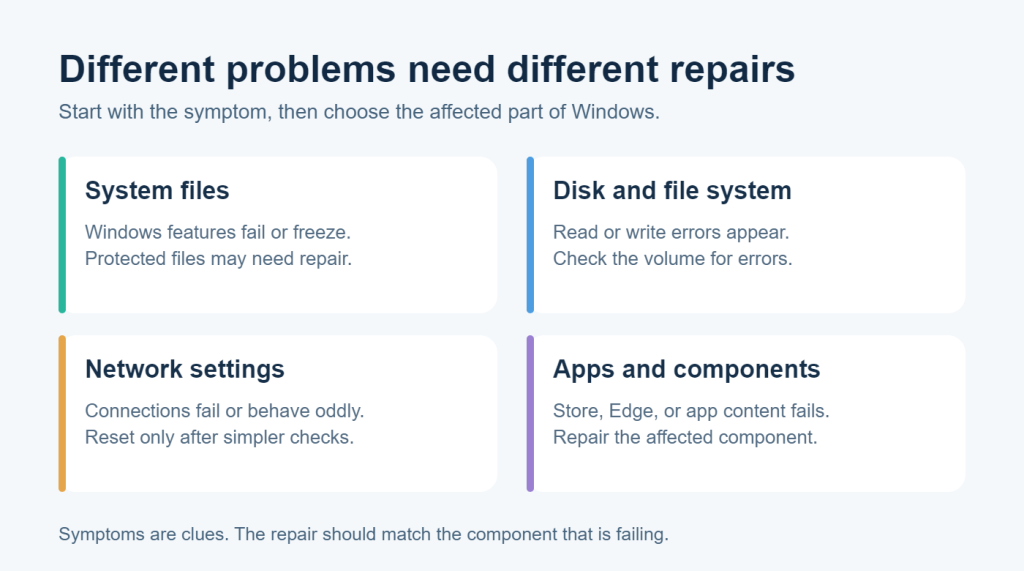
System files and disk errors are different problems
Corrupted Windows system files can make features fail, cause errors, or leave the system unresponsive. Microsoft recommends its Deployment Image Servicing and Management (DISM) and System File Checker (SFC) tools to check and restore missing or damaged protected files. Its instructions explain what each scan does and how to read the result.
A disk check looks at a different layer: the structure of a drive’s file system. Windows’ Check Disk tool can report file system problems and, with a repair option, attempt to fix them. It does not restore a worn-out or physically failing drive. If a disk repeatedly reports errors or files become inaccessible, protect your data first and investigate the drive itself. Microsoft documents what Check Disk can and cannot do.
Outbyte Driver Updater separates File System Recovery from System Disk Check in System Repairs. That distinction matters: choose the action that matches the problem you are seeing, rather than treating both as general speed boosters.
When a network reset makes sense
If a PC can see a network but repeatedly fails to connect, the cause may be a saved configuration, an adapter, a driver, the router, or the provider. Restarting the PC and router and checking the connection are sensible first steps. Windows’ built-in Network reset is broader: it removes installed network adapters and their settings, then reinstalls the adapters with default settings after a restart. VPN software or virtual switches may need to be configured again. For that reason, Microsoft recommends its network reset as a last troubleshooting step.
System Repairs includes Network Adapters Reset for connectivity issues. It is relevant when simpler checks have not helped, not as routine maintenance for a working connection.
Repair the component that is failing
Some faults are local to an app or Windows component. A Microsoft Store download that will not start is a different problem from a browser that crashes or an app that cannot show embedded web content. Microsoft documents separate approaches for Store problems, Edge problems, and the WebView2 runtime used by some Windows apps. A game reporting a missing DirectX component calls for a different check again; Microsoft explains how DirectX is supplied on Windows.
Outbyte Driver Updater provides individual Fix actions for Microsoft Store, Edge Browser, Edge Runtime SDK, and DirectX. Run or Fix performs the selected repair inside Outbyte Driver Updater. The options give you a way to address the affected component; they do not establish that every crash, download failure, or graphics problem has that cause.
Treat system image recovery as a larger decision
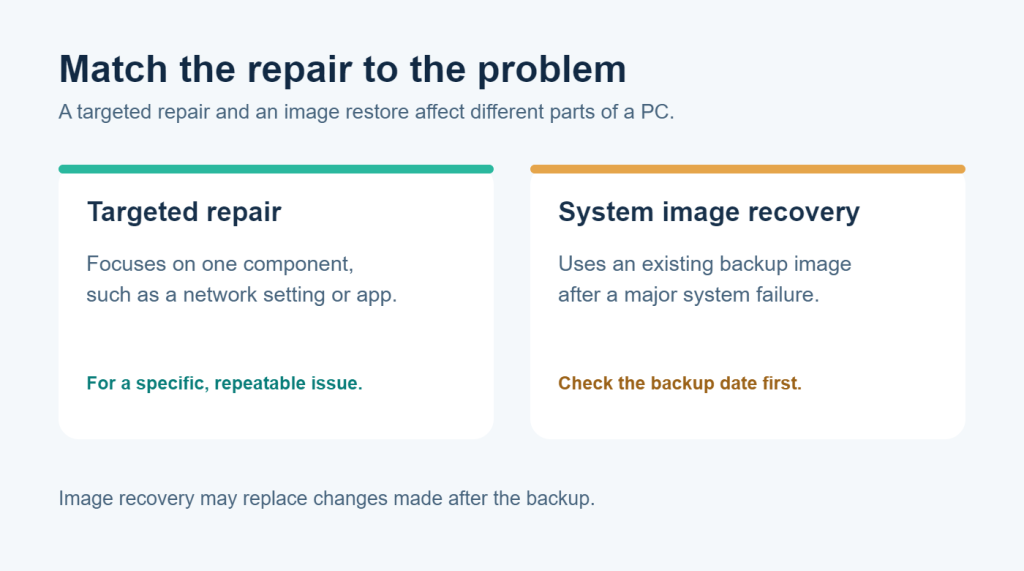
System Image Recovery is different from repairing a single component. It uses an existing backup image to restore the PC after a major failure. The backup must exist, and its date matters: changes made after that image may not be present in the restored system. Microsoft describes system image recovery as a Windows recovery option.
Before a broad recovery action, make sure important current files are backed up and you understand what the chosen image contains. A targeted repair is usually a more proportionate response to one app or connection problem.
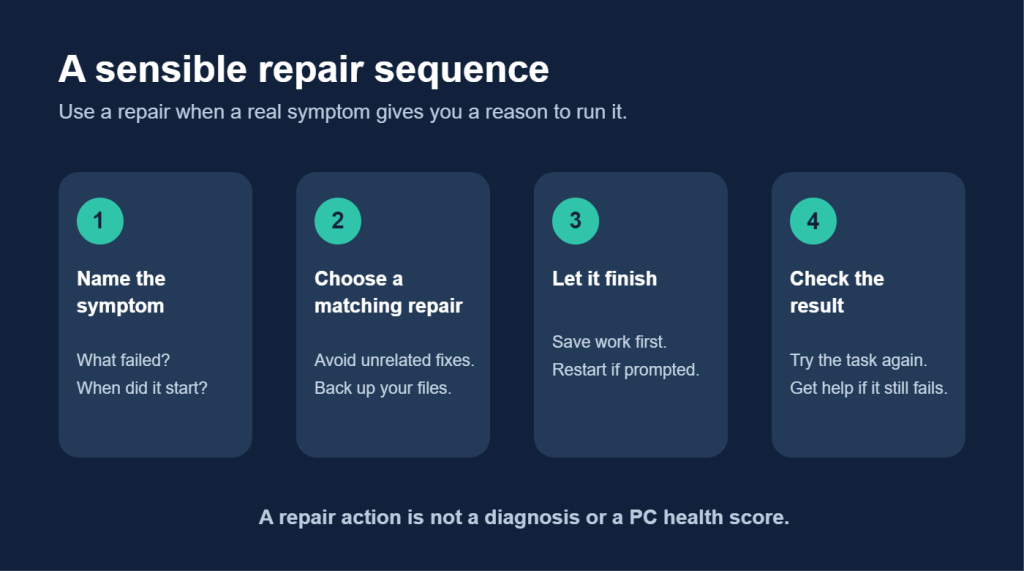
How to choose a repair without guessing
Start with a symptom you can describe: what fails, when it began, and whether it affects one app or the whole PC. Save your work and back up important files before repairs that could change system settings or storage. Choose the action that matches the failing area, let it finish, restart if prompted, and then repeat the task that failed. If the symptom remains, stop and investigate further instead of running every repair in the list.
The System Repairs area in Outbyte Driver Updater brings together File System Recovery, System Image Recovery, System Disk Check, Network Adapters Reset, Microsoft Store, Edge Browser, Edge Runtime SDK, and DirectX actions. Its Run and Fix buttons perform repairs in the app. The right starting point still comes from the symptom, not from how many actions the screen offers.
FAQs
Will a system repair fix a physically failing drive?
No software repair can restore failing hardware. A disk check can address some file system errors, but recurring errors or inaccessible files warrant a backup and a drive health check.
Should I run every repair to keep my PC healthy?
No. These are troubleshooting actions for specific problems. Running unrelated resets can change settings without addressing the cause.
Can a network reset erase my files?
A network reset is aimed at adapters and network settings, not personal documents. It can remove connection settings and require VPN or virtual network software to be set up again.
Is System Image Recovery the same as System Restore?
No. System image recovery uses a backup image of the PC. System Restore rolls back system files and settings to a restore point. Microsoft explains the available recovery options and their effects.
A repair is only useful if it solves the symptom
Windows repair tools cover different parts of the system. Match the action to the problem, protect your files before broad changes, and check whether the original issue is actually resolved. If you want the relevant actions together, Outbyte Driver Updater includes a System Repairs area alongside its driver tools.