The LiveKernelEvent Code 141 can be a real pain when it suddenly pops up while you are going about your workflow or your best game moments.
The error, for the most part, relates to an issue with hardware, usually your graphics card or system drivers, and will come forth when your system detects incompatibility or crashes when you put it under tremendous stress.
Fortunately, there are several steps that you can take in order to resolve this problem and prevent future occurrences.
What is LiveKernelEvent Code 141?
The most common cause for the LiveKernelEvent Code 141 Windows error is some type of hardware failure, typically related to your GPU or system drivers.
This can happen directly after running resources-heavy applications on the GPU, like gaming and rendering, but sometimes it even happens when one uses their computer casually.
It essentially means that Windows has detected that some hardware has malfunctioned and could not recover from this event, which leads the system to crash or restart.
Common Causes of LiveKernelEvent Code 141
Given that it is a hardware error, some of the computer hardware elements to be checked include the graphics card, memory, hard disk, and fans. Overclocking and overheating of computer components also need to be on this list. Another possibility for error can be faulty, outdated, or conflicting device drivers.
There isn’t a single cause for the LiveKernelEvent Code 141 error. In a word, this makes fixing the error a bit more tricky because you might try to resolve it but nothing will work.
What you can do is go through our troubleshooting guide below and work your way down the list of solutions until you find one that works for you.
How to Fix LiveKernelEvent Code: 141
As mentioned above, there is no universal fix for the LiveKernelEvent Code 141 error in Windows 10/11 because it could be caused by different factors. Thus, it is important to perform a system-wide assessment to pinpoint the source of the problem.
Let’s start with these simple troubleshooting tips to try and resolve the error:
First, install any pending system and security updates by going to Start > Settings > Update & Security and clicking Check for updates.
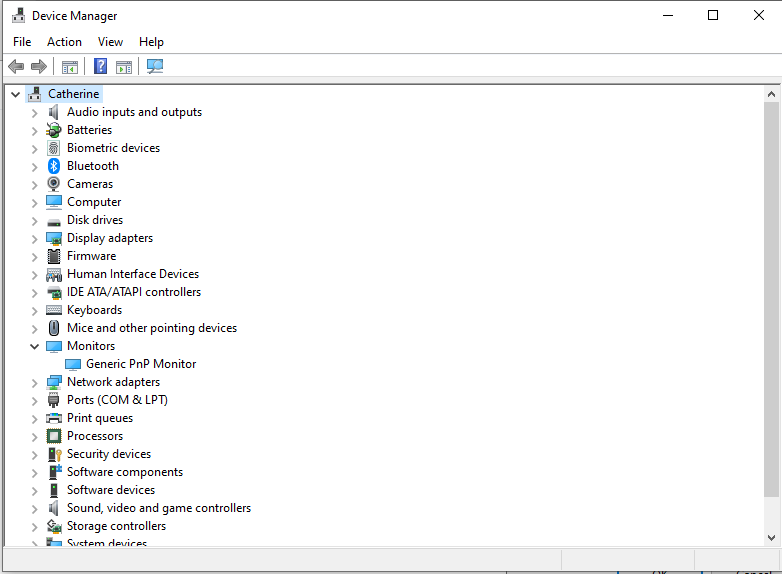
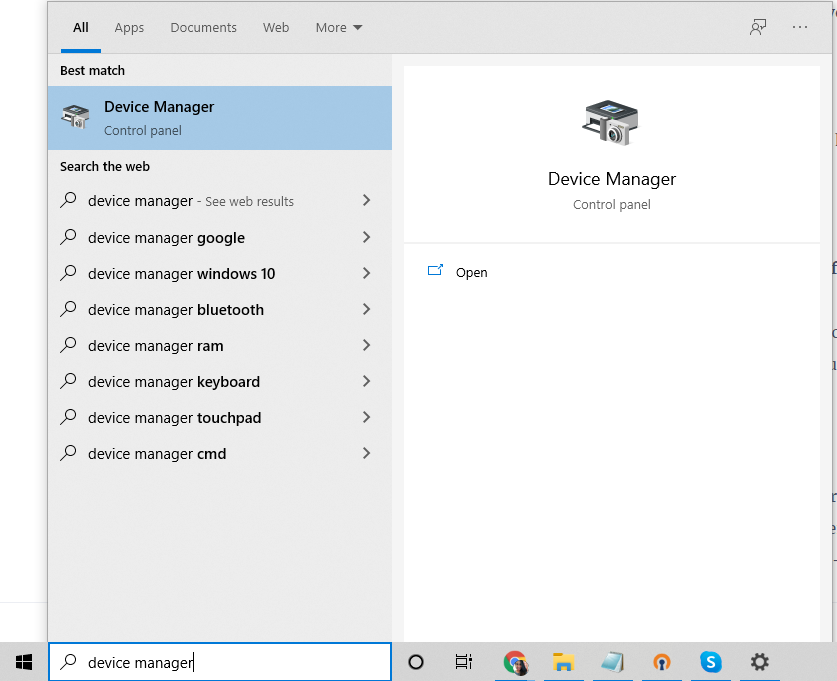
Next, update your device drivers. Open Device Manager by typing it in the search bar. Look for any hardware with a yellow warning symbol, right-click, and select Update driver.
Temporarily disable your antivirus software to prevent interference.
You can also use a tool like Outbyte PC Repair to clean up your system and optimize performance.
Finally, restart your computer to see if the LiveKernelEvent Code: 141 error is resolved. If not, try other solutions.
Fix #1: Run a Disk Check
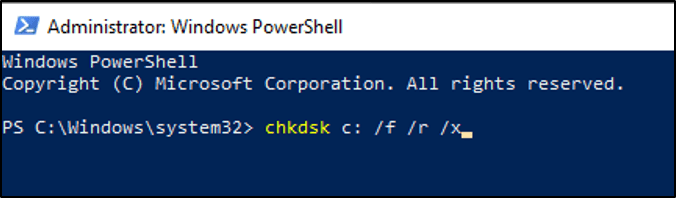
A failing hard drive could lead to system errors. Windows has a built-in tool called CHKDSK that scans and repairs issues with your hard drive. You can run it by:
- Press Win + X and select PowerShell (Admin).
- Type in the command
chkdsk c: /f /r /x. - Let the program complete its scan, which will fix any detected issues.
Fix #2: Check Your Memory
Faulty RAM can also contribute to this issue. Use the Windows Memory Diagnostic tool:
- Open Control Panel and go to System and Security > Administrative Tools.
- Launch the Windows Memory Diagnostic tool.
- Select Restart now and check for problems.

Fix #3: Increase Your CPU Fan Speed
Overheating could be another reason for the LiveKernelEvent error. You can cool your system by increasing your fan speed. You will have to enter your BIOS settings to change these settings. Here is how you can enter into BIOS settings in a Windows 10 device:
- Settings app > Update & Security > Recovery.
- In Advanced startup, click Restart Now.
- During BIOS, locate the settings representing your fans. Now increase the speed to the maximum.
Fix #4: Underclock Your GPU
Your GPU might be overheating due to overclocking-running the GPU at higher speeds than intended. You should try decreasing the clock speed:
- Boot into BIOS, find Frequency/Voltage Control, and lower the clock speed with the core voltage.
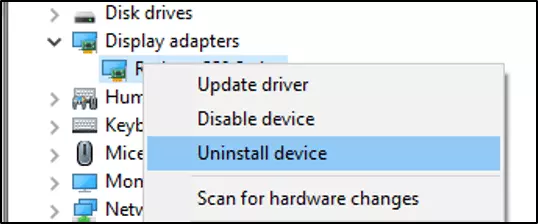
Fix #5: Reinstall GPU Drivers
Outdated or corrupt GPU drivers are the most frequent cause of this error. To fix this:
- Press Win + R, type
devmgmt.msc, and open Device Manager. - Uninstall the GPU driver and download the latest version from the manufacturer’s website.
Fix #6: Update GPU Drivers
Always keep your GPU drivers up-to-date by using tools like Windows Update or downloading directly from the manufacturer’s website.
Fix #7: Disconnect External Peripherals
External peripherals may be interfering with the system because of driver related issues.
Disconnect them one by one to identify which is the faulty device, and update or reinstall its driver.
Fix #8: Install Pending Updates
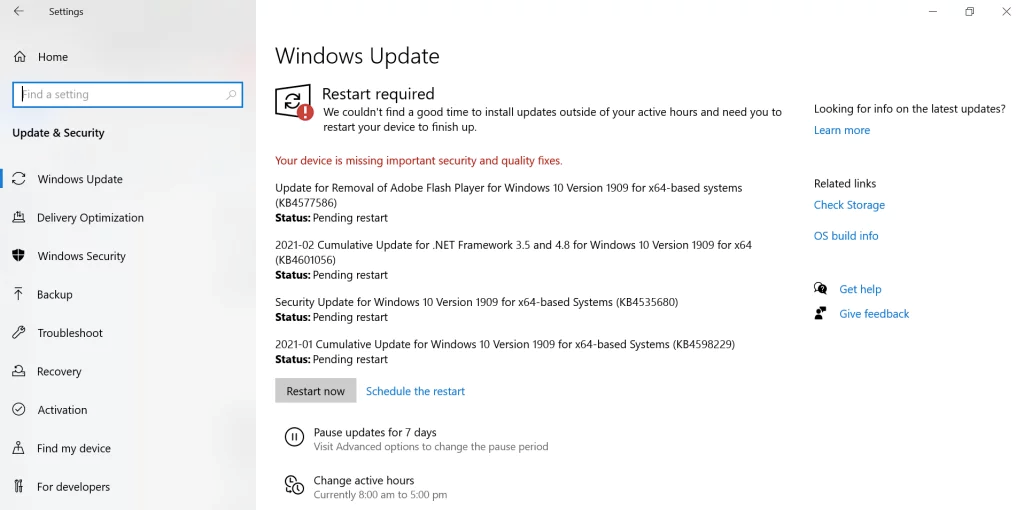
For fixing LiveKernelEvent 141, first, make sure your system is on the latest version. Here’s how to do it:
- Press Win + I to open Settings.
- Go to Update & Security.
- Under Windows Update, check for updates.
- Tap Update if an update is available, and wait until the installation finishes.
- Reboot your computer once the updates are installed.
Fix #9: Perform a Clean Boot
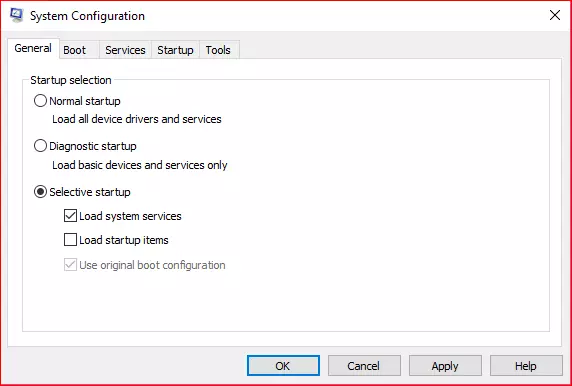
To perform a clean boot to check if some third-party application is interfering with the error,
- Press Win + R, type
msconfigand press Enter. - Now, in the System Configuration window, find the General tab and click Selective Startup.
- Deselect Load startup items.
- Under the Services tab, checkmark the box beside the Hide all Microsoft services and choose Disable all.
- Switch to the Startup tab. Check Open Task Manager. You will see the list of all startup programs; disable all of those and close the Task Manager.
- Click OK. Restart your computer.
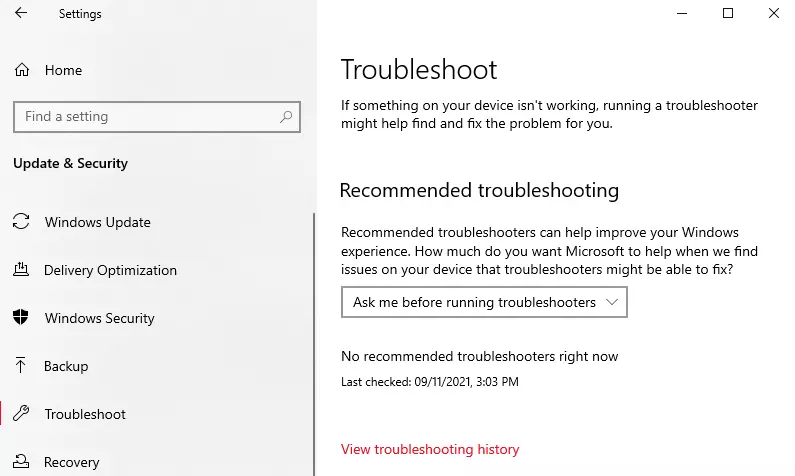
Fix #10: Run the Hardware and Devices Troubleshooter
To fix the LiveKernelEvent error using the Hardware and Devices Troubleshooter:
- Press Win + I to open Settings.
- Go to Update & Security, then select Troubleshoot.
- Find Hardware and Devices and click Run the troubleshooter.
- Follow the on-screen instructions, then restart your computer to see if the issue is resolved.
Fix #11: Ask Help From Pros
If you have tried all the solutions above but you are still seeing the livekernelevent with service pack 0_0 product code, then you may try seeking assistance from professionals.
You can take your device to a technician who is more knowledgeable about the ins and outs of your computer’s hardware.
Fix #12: Perform a Clean Install
A clean install should be your last resort because it erases everything on your hard drive.
First, back up your files to an external storage device to ensure you don’t lose important data. Here’s how:
- Open File Explorer. In the address bar, type
%HOMEPATH%and press Enter. - Select all your files, click Copy to, and choose your backup location.
- Repeat for any other user accounts.
Once you’ve backed up your files, proceed with the clean installation:
- Boot your PC using a Windows 10/11 USB.
- Press any key, click Next, then choose Install Now.
- If prompted, enter your product key or select I don’t have a product key.
- Agree to the terms, select Custom: Install Windows Only, and delete the old Windows partition.
- Select an empty drive and click Next to install a fresh copy of Windows.
Looking for more fixes? Try these guides:
Fix Windows 10 Update Error 0x800703F1
How to Fix Windows Error Code 0x8007232B
How to Fix Win32kfull.sys Blue Screen Error
FAQs
What is a LiveKernelEvent Code 141?
LiveKernelEvent Code 141 is a type of Windows error and mainly happens due to malfunctioning hardware, especially of the GPU.
Would faulty RAM be able to cause LiveKernelEvent Code 141?
Yes, this type of error could well be due to faulty RAM. Just run the test under the name Windows Memory Diagnostic and find out, then fix the problem.
How to fix LiveKernelEvent 141 caused by overheating?
Keep your system well-ventilated: Clean the dust out of your fans, and raise your CPU fan speed in the BIOS settings.
Is a reinstallation of GPU drivers enough to fix the LiveKernelEvent error?
Most of the time, yes. If problems persist, do a proper uninstallation of old drivers with Display Driver Uninstaller (DDU) before installing new ones.
Should I avoid overclocking my GPU?
Overclocking results in system instability, and it is one of the major causes for the LiveKernelEvent error. It would be better if you revert your GPU settings back to default.