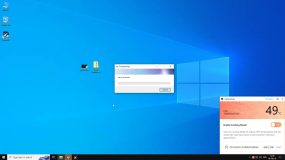
It mainly occurs due to underlying problems with your hard disk drive or system files, although it always asks the user to restart the computer in order for it not to appear, which cannot work out and thus frustrations from the users occur.

What the error really means and how to go about eliminating the error are explained as the paper unfolds.
What Is “Restart to Repair Drive Errors” in Windows?
You normally see this error message under the Action Center in Security and Maintenance. It is more of an alert that signifies that Windows has detected problems with a drive on your computer. These problems involve corrupt system files, bad sectors, or an improperly shut-down disk.
In such a case, it always prompts Windows to reboot your system to repair those errors. But many times, after rebooting, that message may appear again, stating that the issues haven’t been resolved yet.
What Causes “Restart to Repair Drive Errors”?
This error can occur for a variety of reasons:
- Corrupted System Files: Some critical system files, which are relied on by Windows, have been damaged or corrupted.
- Bad Sectors on Hard Drive: The hard drive may have developed bad sectors that give read/write errors.
- Interrupted Shutdowns: This may be because an abrupt shutdown or failure might render drives unstable.
- Disk Issues: High disk usage or low space results in system crashes.
- Software conflicts: Conflicts among different programs can also sometimes cause this error.
How to Fix “Restart to Repair Drive Errors”
Use Startup Repair
Windows Startup Repair can resolve many boot-related issues, including persistent drive error messages.
- Use Shift and click on Restart when in the Start menu to boot into the Advanced Startup Options menu.
- Choose Troubleshoot > Advanced Options > Startup Repair.
- Select your user account. If prompted enter the password.
- Let Startup Repair go ahead and scan, detecting and fixing the problems. Then, reboot your computer to see if the error message reoccurs.
Run SFC – System File Checker Tool
The System File Checker utility finds and replaces corrupted system files.
- Type
cmdin the search bar, then selected “Run as Administrator” which opens the Command Prompt window. - Type the following command:
sfc /scannow. - Let it finish the scan, as SFC will automatically replace the files that have errors.
- Now, restart your computer and check if this solution fixes your problem.
Run DISM
The DISM tool fixes corrupted system files in Windows. Here’s how to use it:
- Open Command Prompt as Administrator (press Windows + R, type
cmd, and select Run as Administrator). - Type this command and press Enter:
DISM.exe /Online /Cleanup-image /Restorehealth
If online repair fails:
- Insert your Windows installation media.
- Use this command, replacing the path with your media’s location:
DISM.exe /Online /Cleanup-Image /RestoreHealth /Source:C:\RepairSource\Windows /LimitAccess
This will restore damaged files and resolve errors.
Use CHKDSK
The Check Disk utility, better known to most people as CHKDSK, will find and fix bad sectors on your drive.
- Open up Command Prompt as an Administrator.
- In the command, type:
chkdsk C: /f /r /x(replace “C:” with the appropriate drive letter). - Hit
Ywhen it asks for confirmation. - Reboot your computer.
CHKDSKwill run during boot..
Use PowerShell
Another effective method of troubleshooting in drives is with the use of PowerShell.
- In the search box, type
PowerShell, then click the “Run as Administrator” option to load the application. - Once inside PowerShell, execute the following in the command prompt:
Repair-Volume -DriveLetter C.
Change “C” to whatever the letter is for your drive. - Let it run until it finishes and after that restart your computer.
Run System Restore
If this is recent, then a System Restore may well bring your system back to a point where it was working as it should.
- Rght-click the Start menu and type in
System Restore. - Click Create a restore point.
- Click System Restore and click a point in the past when the error didn’t occur, then follow on-screen instructions.
Learn more and keep improving your PC:
How to Fix Windows Error Code 0x80070652?
5 Must-Try Fixes for Error Code 80090030
How to Fix the Error Cpde 0x80040115
What is the LiveKernelEvent Code 141 and How to Deal With It?
FAQs
What does the message “Restart to repair drive errors” mean?
It means that there are possible problems with the hard drive or system files, and Windows is attempting to repair them.
Why does the error message keep on showing up?
This could be because it fails in its repair job, the damage to your disk is so serious, or the source of this problem is still there.
Can it mean that the hard disk is failing?
Yes, continuing drive errors might indicate bad sectors or problems with the hardware. Back up your data and perform a diagnostic.
How long does CHKDSK take to run?
That would depend on how big your drive is, and also the amount of the errors. It can range from several minutes up to a couple of hours.
So, is it safe just to ignore this error message?
If this error is left unnoticed, it might create further instability in your system, or it could result in data loss. Remedial action is recommended at the earliest.