The error code 0x80070652 in Windows disturbs the process of update processing, thereby not letting one add important features or fixes.
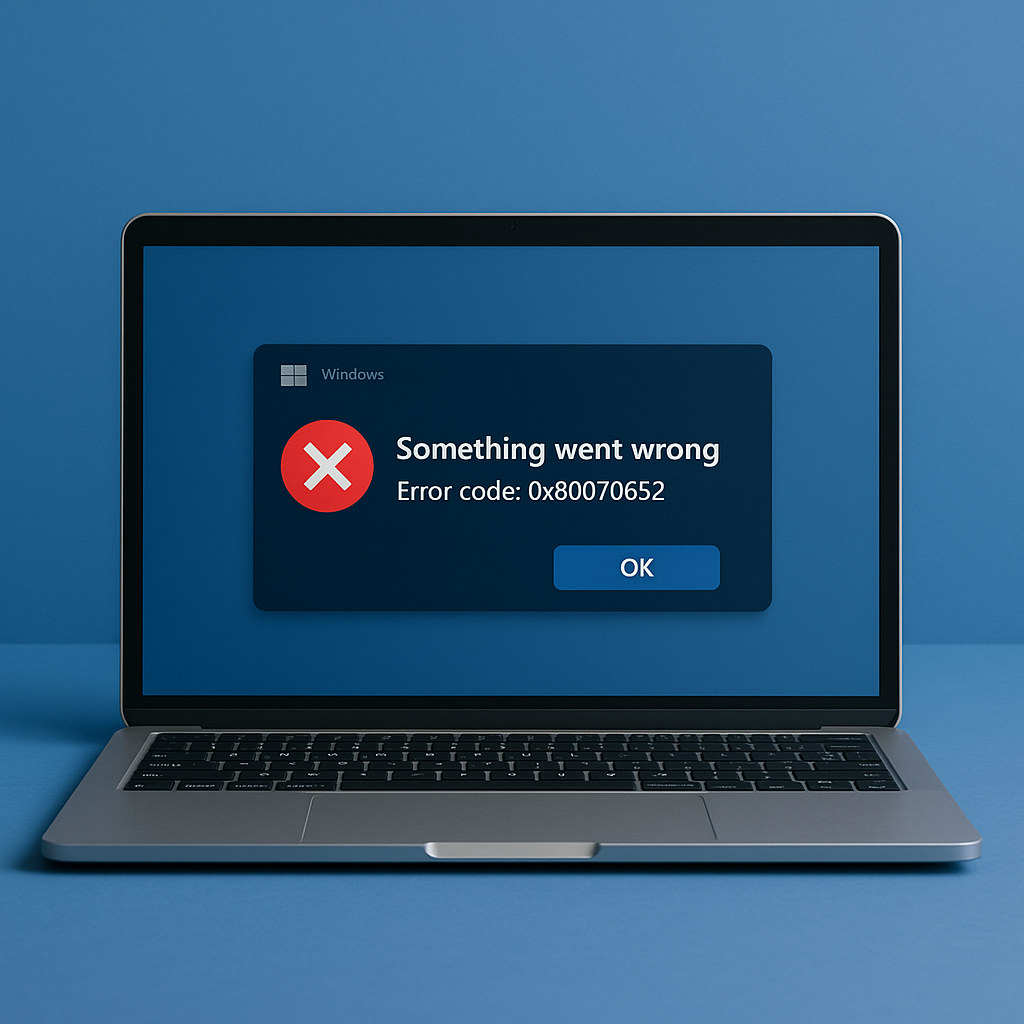
This article provides an overall overview of what it is, the causes of such an error, and also some practical ways of getting it sorted effectively.
What Is the Error Code 0x80070652 on Windows 10/11?
In general, error code 0x80070652 occurs during updates in Windows. The main occurring periods are during installation failure and confliction with the updated version and the already installed components. The system’s performance stops and allows access to new features that were provided to you.
What Causes the Microsoft Error Code 0x80070652?
Several factors can trigger error code 0x80070652:
- Corrupted or incomplete updates.
- Conflicting system processes during the update installation.
- Outdated device drivers or software.
- Corrupt system files.
- Issues with the Software Distribution Folder.
Ways to Resolve the Windows 10/11 Update Error 0x80070652
Restart Your PC and Run the Windows Update Troubleshooter
Sometimes, the easiest way to repair update errors is simply to restart your PC. Then follow up by running the Windows Update Troubleshooter:
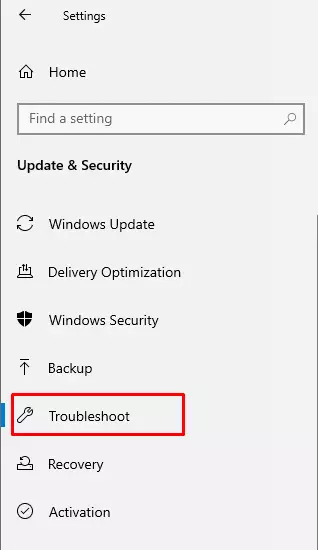
- Open Settings > Update & Security > Troubleshoot.
- Click Windows Update then run the troubleshooter.
Uninstall the Most Recent Update and Install It Once Again
If the error appeared after a recent update:
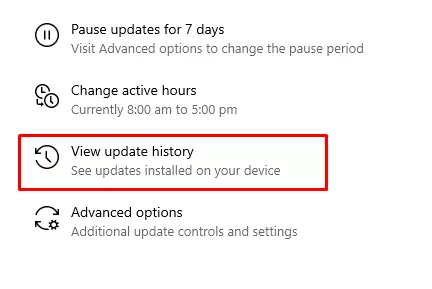
- Go to Settings > Update & Security > View update history.
- Select Uninstall updates and remove the problematic update.
- Restart your PC and reinstall the update manually.
Use a Third-Party Tool to Resolve Windows Issues
Run tools like Outbyte PC Repair to detect and fix the root cause of the error. With such tools, system files are cleaned, performance is optimized, and update processes are smoothened.
Run a Batch Script
Create and run a batch script to reset update components:
Open Notepad and copy the following commands:
@CHECH OFF
echo Simple Script to Reset / Clear Windows Update
echo.
PAUSE
echo.
attrib -h -r-% windir% \ system32 \ catroot2
attrib -h -r-% windir% \ system32 \ catroot2 \ *. *
net stop wuauserv
net stop CryptSvc
net stop BITS
ren% windir% \ system32 \ catroot2 catroot2 .reg
ren% windir% \ SoftwareDistribution sold.old
ren “% ALLUSERSPROFILE% \ application data \ Microsoft \ Network \ downloader” downloader.old
net Start BITS
net start CryptSvc
net start wuauserv
echo.
echo Task completed successfully …
echo.
PAUSE
Save the file with a .bat extension and run it as an administrator.
Install the Update Manually
If Windows Update appears to be the culprit, try to manually install the update. Here is how to do it:
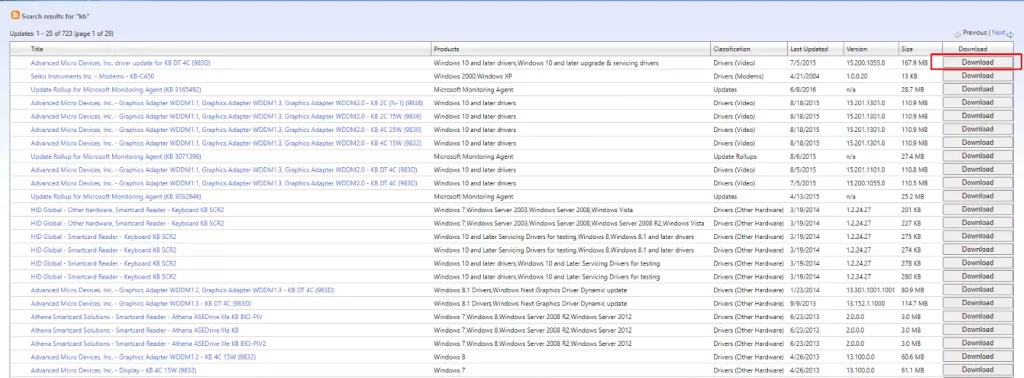
- Go to the Microsoft Update Catalog.
- Type the KB number of the update you want in the search box, and then click Search.
- Find the update that matches your system and click Download.
- Once downloaded, run the file and restart your PC.
Use the Media Creation Tool
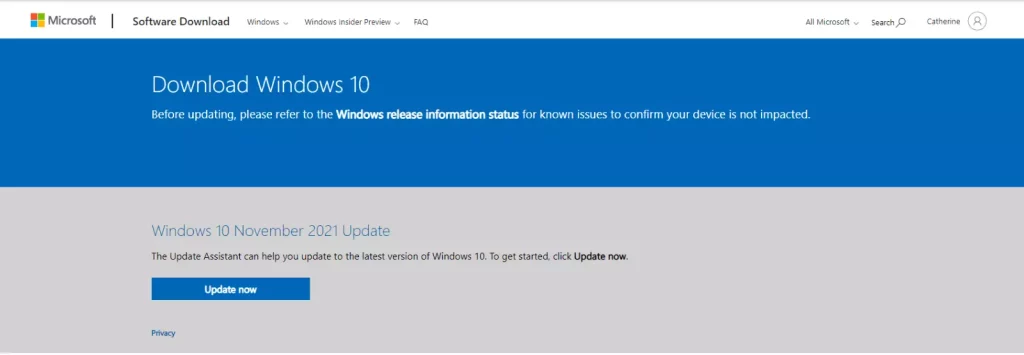
The Media Creation Tool allows for a manual update:
- Download it from Microsoft’s website.
- Select Upgrade this PC now and follow the on-screen instructions.
Reset the Software Distribution Folder
To refresh the Software Distribution folder and, thus, resolve the problem, do the following:
- Log off the internet and reboot your computer.
- Open Command Prompt as an administrator by using Win + X then select Command Prompt (Admin). Run the following commands by each typing, then press Enter:
net stop wuauserv
net stop cryptSvc
net stop bits
net stop msiserver
- Rename the SoftwareDistribution and Catroot2 folders:
ren C:\Windows\SoftwareDistribution SoftwareDistribution.old
ren C:\Windows\System32\catroot2 Catroot2.old
- Restart the services by typing these commands:
net start wuauserv
net start cryptSvc
net start bits
net start msiserver
- Close Command Prompt and restart your computer. This should resolve the problem.
Perform a Clean Boot
A clean boot prevents third-party software from interfering:
- Open msconfig via the Run dialog (Windows + R).
- Go to the Services tab and select Hide all Microsoft services, then click Disable all.
- Restart your PC and retry the update.
Run the System Restore Tool
Use System Restore to return to a working state:
- Open Control Panel > Recovery > Open System Restore.
- Select a restore point prior to the error occurrence.
Update Your Device Drivers
Outdated drivers can cause update failures. Update them:
- Open Device Manager, right-click a device, and select Update driver.
- Alternatively, use tools like Driver Updater to automate the process.
Still having issues? These guides can help:
Error Code 80090030 While Accessing Microsoft Office 365
How to Fix the Error Cpde 0x80040115 in Windows 10/11?
FAQs
What is error code 0x80070652?
This is an error code for a Windows update failure; it happens when some files have been corrupted or are conflicting.
Can I prevent update errors like 0x80070652?
Perform regular driver updates and keep the system clean to minimize such risks.
What if I just ignore this error?
This will block the vital set of updates from getting installed, hence keeping your system vulnerable and underperforming.
Is this error fixable using third-party tools?
Yes, tools like Outbyte PC Repair can fix all common system problems that are in the way of updating.