Storage performance plays a huge role in PC speed — everything from booting Windows to loading games depends on how quickly data can be accessed. But hard disk drives (HDDs) and solid-state drives (SSDs) work very differently, so they need different kinds of maintenance.
Outbyte Driver Updater includes a built-in storage optimization feature that detects which type of drive you have and selects the right action automatically:
- HDDs → Defragmentation
- SSDs → TRIM optimization
This prevents accidental misuse (like defragging an SSD, which can shorten its lifespan).
Let’s break down why this matters — and how Outbyte helps keep both drive types fast.
Why HDDs Need Defragmentation
HDDs store data on spinning magnetic platters. Over time, files get fragmented — meaning the pieces are spread out across different areas of the disk.
As fragmentation increases, the drive must physically move more to read the file, which results in:
- Slower loading times
- Longer boot delays
- Stutters when accessing large files
- More mechanical wear
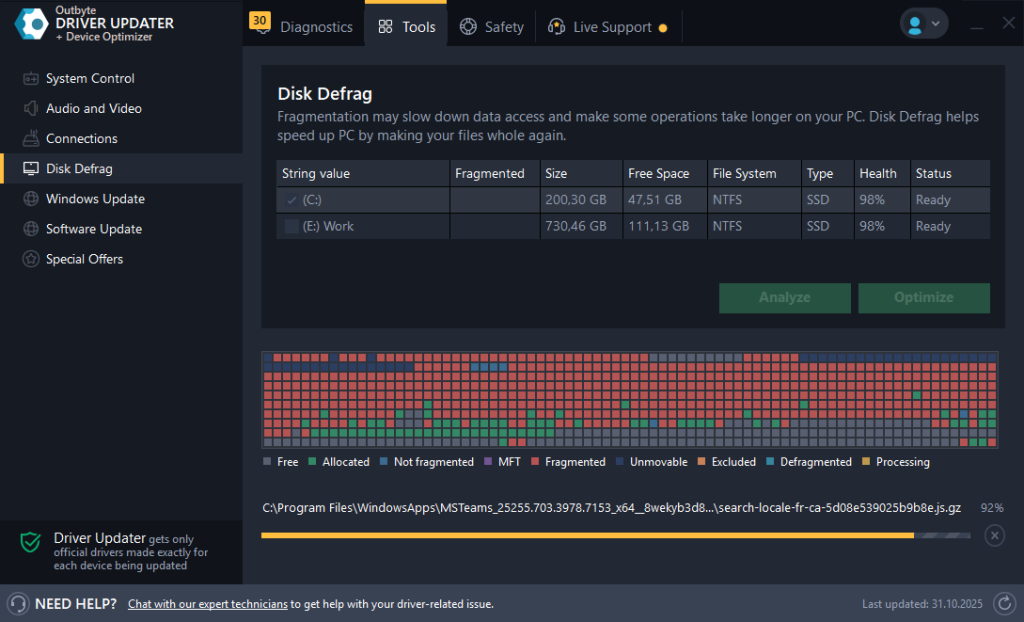
Defragmentation reorganizes data so pieces sit closer together, reducing movement and speeding up mechanical access.
This is especially valuable for…
- Older PCs with HDD-only storage
- Users who handle large files daily
- Gaming laptops that take long to load titles
Why SSDs Should Never Be Defragged
SSDs don’t have moving parts — so fragmentation doesn’t slow them down.
Instead, SSDs slow when they run out of clean blocks.
To stay fast, they use TRIM optimization, which:
- Clears unused data
- Reduces slow write operations
- Extends SSD lifespan
- Keeps boot and load times snappy
If you defrag an SSD, you only add unnecessary wear to its memory cells.
That’s why Outbyte never applies defrag to SSDs — it uses the proper TRIM command instead.
Automatic, Smart Drive Maintenance in Outbyte
Manually keeping track of fragmentation and TRIM schedules is a hassle.
Outbyte Driver Updater:
✔ Detects drive type instantly
✔ Runs TRIM or defrag depending on the hardware
✔ Avoids harmful hardware misuse
✔ Gives clear results and performance indicators
Automate smart storage care with Outbyte Driver Updater.
HDD vs. SSD: Which Optimization Helps You Most?
| Feature | HDD Benefit | SSD Benefit |
|---|---|---|
| Defrag | Faster file loading, less disk movement | ❌ Risk of wear |
| TRIM | ❌ Doesn’t apply | Maintains peak write speed |
| Regular cleanup | Prevents fragmentation | Prevents slowdown from full storage |
Quick rule:
If your drive makes noise → it’s an HDD → defragging is helpful.
If it’s silent → SSD → TRIM is what keeps it fast.
When to Run Maintenance
You’ll see benefits when:
- The PC feels slower than usual
- Folders take longer to open
- You’re running low on free space
- You install or uninstall a lot of software
- Games load slowly on HDD systems
Storage maintenance doesn’t just boost speed — it helps your PC stay reliable longer. With automatic defrag and SSD optimization built into Outbyte Driver Updater, your hardware stays healthy without guesswork.
FAQ
How often should I optimize drives?
HDDs: every 1–2 months
SSDs: occasionally, especially if nearly full
Will this help FPS in games?
Not FPS — but load times and world streaming can improve.
Can this reduce wear on HDDs?
Yes — defrag reduces excessive mechanical movement.
Why does Windows sometimes defrag SSDs?
It normally doesn’t — and Outbyte prevents this mistake entirely.
Can drive issues cause Windows crashes?
Yes — especially if damaged fragments affect system files.