Although Windows Update is so important to make systems updated and safe, it recently has been burdened with Error 0x80244018; this paper, therefore, intends to explain what it is, and most importantly why these errors occur and how this could be dealt with.
More reasonable means are still going to be discussed further in this article.
What Is Windows Update Error 0x80244018?
Error 0x80244018: This indicates some failure in downloading and installing of an update using the service of Windows Update. Usual messages, which are accompanied by this error code are, “There were some problems installing updates” and “Updates failed“. The process keeps the system disturbed, leading to possible security vulnerability.
The majority of manifestations of Error 0x80244018 appear within the Microsoft Store. It won’t exactly make the Store unusable, but that inability to download/install of an application is rather frustrating. On occasion, it can pop up in other instances like:
- Feature update to Windows 10, version 1903 –
error 0x80244018 - Feature update to Windows 10, version 1803 –
error 0x80244018 - Windows 10/11, version 1903 –
error 0x80244018
What Causes Windows 10/11 Error 0x80244018?
Several factors can trigger this error, including:
- Third-party antivirus programs: These can block the Windows Update service.
- Corrupted system files: Some of the critical update files may be damaged.
- Network problems: Proxy or VPN settings may prevent update downloads.
- Background Intelligent Transfer Service (BITS) problems: If this service is disabled or not running, updates can fail.
- Misconfigured Windows Update components: Issues with these components may stop the update process.
Since this error can be triggered by system-level issues, Outbyte PC Repair can check for corrupted files and incorrect Windows settings and help resolve update-related problems more efficiently.
Identifying the cause can help apply the appropriate fix.
Different Methods to Deal with Error Code 0x80244018
Solution #1: Run the Windows Update Troubleshooter
Windows has a built-in solution to identify and resolve update issues.
- Settings: open it, go to System > Troubleshoot > Other troubleshooters.
- Run windows update, click on “Run the troubleshooter“.
- Continue with completing it by following the on-screen instructions.
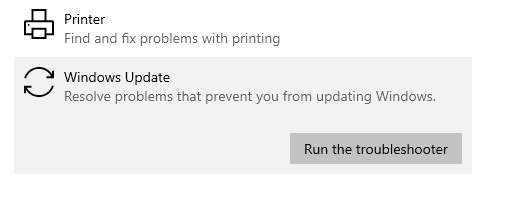
Once the troubleshooting is done, reboot your computer and see if the error persists.
Solution #2: Get Rid of 3rd Party Apps That Might Be Interfering
The most common cause, however, is some third-party antivirus software or another security tool blocking Windows Update processes. Temporarily disable such programs or uninstall them, then see if that solves the problem.
To help identify potentially unwanted or conflicting security applications, Outbyte AVarmor can detect and remove malware or intrusive software that may interfere with Windows updates.
- Open Control Panel and go to Programs > Programs and Features.
- Locate and right-click on the antivirus software and select Uninstall.
- Restart your computer and try to update again.
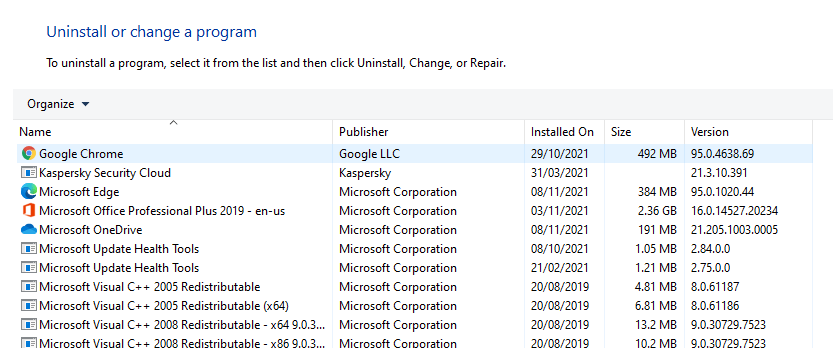
If the problem disappears, step down to a less intrusive security solution.
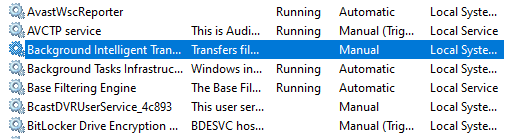
Solution #3: Force-Start BITS
For downloading updates, the Background Intelligent Transfer Service is very crucial, so if it is not running, try restarting.
- Press Win + R, write
services.msc, and then press Enter. - Scroll down to Background Intelligent Transfer Service and double-click it.
- Change the Startup type to Automatic and then click Start.
- Click OK to save your changes.
Retry the Windows Update process to see if the issue is fixed.
Solution #4: Switch Off Proxy Server or VPN Service
Proxies and VPNs can interfere with the connection to Microsoft’s servers. Temporarily disable them.
- Open Settings and go to Network & Internet > Proxy.
- Toggle Use a proxy server to Off.
- If you’re using a VPN, disconnect or disable it from its app or settings.
Once disabled, restart your PC and attempt to update again.
Solution #5: Reset the WU Components on Your PC
Resetting the Windows Update components can resolve issues with update services. Open Command Prompt as an administrator. Run these commands one at a time, pressing Enter after each:
net stop wuauservnet stop cryptSvcnet stop bitsnet stop msiserver
Run the following commands in the same CMD window to rename the SoftwareDistribution and Catroot2 directories after the services have been disabled.
ren C:\Windows\SoftwareDistribution SoftwareDistribution.oldren C:\Windows\System32\catroot2 Catroot2.oldnet start wuauservnet start cryptSvcnet start bitsnet start msiserver
Close Command Prompt and restart your PC.
Solution #6: Fix Corrupted System Files
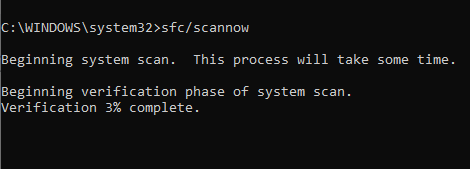
Run the built-in utilities SFC and DISM for repairing system files, probably causing the error 0x80244018.
- Run SFC: Press the key combination of Windows + R. Type
cmdand press Ctrl + Shift + Enter to open Command Prompt administrator.
Inside of it, typesfc /scannowand hit the Enter key. Now the command will begin replacing some damaged files. - Restart PC: The error is gone by now.
- If the issue persists, try running DISM: Run the Command Prompt as administrator.
In the command prompt, typedism /online /cleanup-image /restorehealthand press Enter. That will download fresh files from Microsoft servers and replace the corrupted ones. Make sure you are connected to the internet. - Once the DISM scan is complete, restart your PC and try updating it again.
Tips and guides for a faster, healthier PC:
Fix the Windows 10/11 Update or Activation Error 0x800f0805
How to Fix Windows Update Error 0x8007045b?
How to Fix Windows Update Error Code 0x8024402c
8 Solutions to Fix OOBEkeyboard Errors in Windows 10/11
“Restart to Repair Drive Errors” Keep Showing Up After Reboot in Windows 10/11
FAQs
What does error 0x80244018 mean?
This error means that there is a failure in updating Windows due to network or software conflicts.
Can antivirus software make this error appear?
Yes; third-party antivirus programs sometimes block the services that allow updates.
How do I reset components of Windows Update?
Via Command Prompt, you will need to stop update services, rename some folders, then restart the services.
What if none of the above solutions resolve the problem?
If none of the above repairs work, try Outbyte PC Repair to make all necessary optimizations and fixes.