What Is the Error 0x80040154 All About?
Error code 0x80040154 is one of the latest for users working in the realm of Windows Store, Windows update, Google Chrome, and also when working in VirtualBox.
General meaning-that something in system/applications is unregistered/unavailable-can be produced within many applications which already suppose the difference in the text of error messages. A couple of examples:
- “Something went wrong…”
- “We’re sorry, but we weren’t able to do that.
- “Error code: 0x80040154”
- “
Runtime.InteropServices.COMException (0x80040154): Class not registered (Exception from HRESULT: 0x80040154 (REGDB_E_CLASSNOTREG))” - “
Error Code 3: 0x80040154– An error occurred while checking for the update.” - “Failed to create the
VirtualBoxClient COMobject. The application will now terminate.” - “
Callee RC: REGDB_E_CLASSNOTREG(0x80040154)”
This guide looks at how the error code 0x80040154 of Microsoft Store could be fixed, including what actually causes it. Basically, this error prevents an update or installation from continuing on any Microsoft apps.
What Causes the Error 0x80040154?
The exact causes for this 0x80040154 error code would vary from application to application, process to process. Some common ones would be as follows:
- Corrupted or missing system files.
- Improperly updated or installed applications,
- Disabled required services,
- Registry errors regarding the particular application or service.
Since this error is often linked to system-level issues, tools like Outbyte PC Repair may help identify corrupted files, repair registry inconsistencies, and restore misconfigured Windows settings.
General Fixes for the 0x80040154 Error
Fix #1: Run the Windows Store Troubleshooter
Troubleshooting the Microsoft Store is an effective way to fix issues with opening it or downloading apps. The process is straightforward:
- Press Win + I to open the Settings app.
- Go to Update & Security > Troubleshoot.
- Click on Additional troubleshooters.
- Scroll down and select Windows Store Apps (usually at the bottom).
- Click Run the troubleshooter and follow the on-screen instructions.
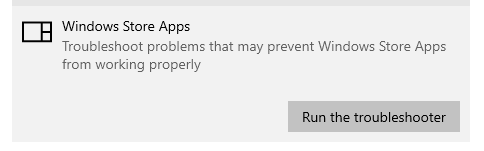
The troubleshooter will attempt to automatically resolve the problem. If not, then steps can be shown to resolve it.
Fix #2: Reset the Windows Store Cache
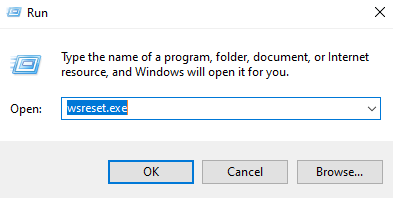
Press Windows + R to open the Run dialog. Type wsreset.exe and press Enter. This will clear the Store’s cache and potentially resolve the error.
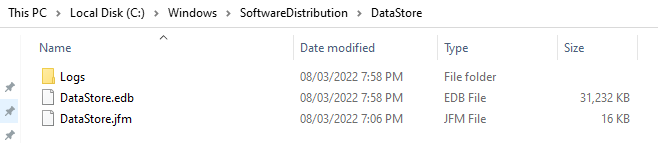
Fix #3: Clear the Contents of the DataStore Folder
Go to the DataStore folder located at C:\Windows\SoftwareDistribution\DataStore. Delete the contents of this folder. Restart your PC and see if this resolves the problem.
Fix #4: Repair the Microsoft Store App
If the above doesn’t resolve an issue where you still cannot install or update an app from Microsoft Store, something might be incorrect with the Store app.
You are unable to uninstall the Store app directly; instead, you’ll be resetting the Store using Windows PowerShell. Here’s how:
- Press Win + X, open the Power Menu, and choose Windows PowerShell (Admin).
- The prompts of User Account Control click Yes to open Powershell as Administrator. Type, one line at a time copy-paste, and enter for each:
Get-AppxPackage *windowsstore* | Remove-AppxPackageGet-AppXPackage *WindowsStore* -AllUsers | Foreach {Add-AppxPackage -DisableDevelopmentMode -Register "$($_.InstallLocation)\AppXManifest.xml"}
This process resets the Microsoft Store app to its default settings.
How to Fix the Windows Update Error 0x80040154
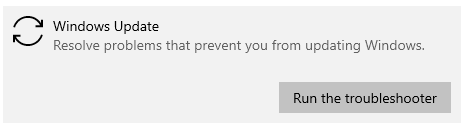
1. Run the Windows Update Troubleshooter
Out of the Settings, to Update & Security > Troubleshoot, and select Windows Update. Run the troubleshooter to fix any update related issues.
2. Reset All Windows Update Components
Since lots of different services are used within Windows to download and install updates, this might fail if one is malfunctioning. A common solution is to reset the update components.
Here’s how:
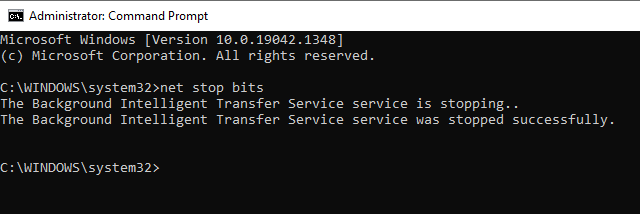
Start Menu, search for cmd, right-click on Command Prompt, and select Run as administrator. Now in the Command Prompt, execute each of the following commands one by one by hitting the Enter key:
net stop bitsnet stop wuauservnet stop appidsvcnet stop cryptsvc
These stop the Windows Update services.
Delete temporary files by typing:Del “%ALLUSERSPROFILE%\Application Data\Microsoft\Network\Downloader\*.*”
If prompted, type Y and press Enter. Rename the update folders with these commands:Ren C:\Windows\SoftwareDistribution SoftwareDistribution.old
Ren C:\Windows\System32\catroot2 Catroot2.old
Restart the update services using these commands:
net start wuauservnet start cryptSvcnet start bitsnet start msiserver
Once done, try updating your system again to see if the problem is resolved.
3. Clear the BITS Queue
Open the Command Prompt with administrator privileges and type bitsadmin /reset /allusers. This will remove all the pending tasks from the Background Intelligent Transfer Service queue.
4. Download the Stand-Alone Installer
You can visit the Microsoft Update Catalog website, search for the update using its KB number, and download the stand-alone installer to apply the update manually.
How to Fix Error Code 3: 0x80040154 on Chrome
1. Restart Google Chrome and your PC
Close all Chrome windows, restart your computer, and see if the problem is fixed with Chrome opened.
2. Enable Google Update Services
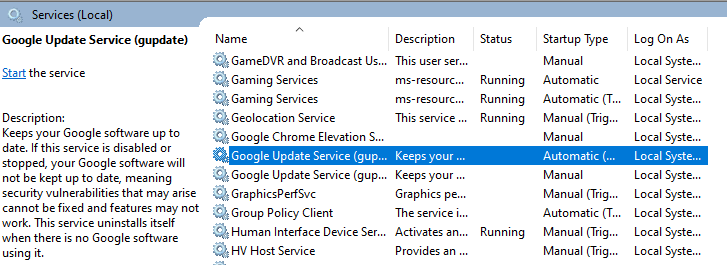
- Right-click the Windows button and select Run.
- Type
services.mscand press Enter. - Under the Name column, find and double-click Google Update Service (gupdate).
- Set Startup type to Automatic or Automatic (Delayed Start), then click Apply and OK.
- Double-click Google Update Service (gupdatem).
- Set Startup type to Manual, then click Apply and OK.
- Restart your computer and try to update Chrome again.
3. Enable Chrome Update in Windows Registry
Launch the Registry Editor and go to HKEY_LOCAL_MACHINE\SOFTWARE\Policies\Google\Update. Make sure that the updates are enabled.
How to Fix the HResult 0x80040154 Error
1. Run VirtualBox in Compatibility Mode
Right-click the VirtualBox Shortcut and open Properties > Compatibility then select to run it in Compatibility mode for an earlier version of Windows.
2. Update VirtualBox
Visit the VirtualBox website to download and install the latest version.
3. Re-Register the VirtualBox Components
- Launch Command Prompt as an administrator.
- Navigate to the VirtualBox installation folder at:
C:/Program Files/Oracle/VirtualBox - The command
cdis used for changing directories. - Run this:
exe /ReRegServer; exe VBoxC.dll. - If the VirtualBox driver is stuck or unresponsive, run
sc start vboxdrv. - If that fails, go to
C:/Program Files/Oracle/VirtualBox/drivers/vboxdrv, right-click onVBoxDrv.inf, and select Install.
Driver related problems can sometimes prevent VirtualBox components from registering correctly. In such cases, tools like Outbyte Driver Updater may help ensure that required system drivers are properly installed and up to date
4. Reinstall VirtualBox
Uninstall VirtualBox completely, restart your computer, and reinstall the latest version.
Best practices for improving PC performance
Fix: Microsoft Store Error 0x80070520 In Windows 10/11
Fix the Windows 10/11 Update or Activation Error 0x800f0805
FAQs
What exactly is error code 0x80040154?
It normally tells about a missing or unregistered system component that is utilized by an application or service.
How do I resolve issues with the Windows Store based on error 0x80040154?
You can clear the Store cache, run the troubleshooter, or reinstall the app.
Can VirtualBox errors cause system instability?
Yes, errors like HResult 0x80040154 can cause VirtualBox to malfunction, but they can often be fixed by updating or reinstalling the software.
Why does this error occur in Chrome?
It might be due to disabled Google Update services or issues in the Windows Registry.
Is there a tool to automatically fix these errors?
Consider using tools like Outbyte PC Repair to diagnose and resolve common system issues efficiently.