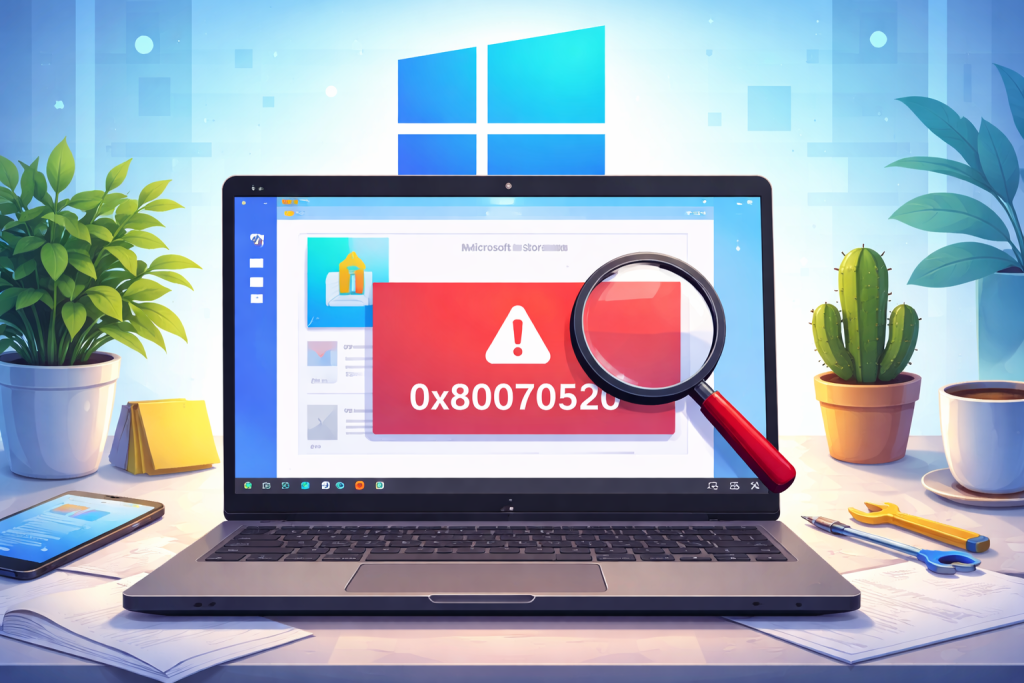
The Microsoft Store has been one of the important features in Windows, hosting several applications, games, and services. Be it as it may be, error code 0x80070520 is one of those issues that would not give access to it.
This article shows some probable causes of this problem and some effective ways of gaining a solution.
What Causes Microsoft Store Error Code 0x80070520?
The 0x80070520 error usually occurs during an update or when downloading something from Microsoft Store. Most of the time, it comes along with the "Something unexpected happened" message. Some reasons are listed here:
- The interference of the third-party antivirus programs, interfering with the processes.
- Cache of Microsoft Store corrupted over some time.
- Updating of the Microsoft Store along with Windows Update is pending.
- Buggy application permissions or damaged system files.
Being sure about what is the actual reason will guide you towards an efficient solution.
How to Fix Error Code 0x80070520 in Microsoft Store
Try these steps for the removal of error code 0x80070520 from your Microsoft Store to make it capable of downloading applications. Or cleaning and optimization of your system may be done through Outbyte PC Repair.
Uninstall the Third-Party Antivirus Programs
Operation of Microsoft Store might interfere with some operations involving the third-party antivirus software installed in your computer. Uninstall the antivirus for some time and see if the problem goes away.
- Open the Control Panel and open Programs and Features.
- Look for your antivirus program, right-click, and click on Uninstall.
- Restart now and see if Microsoft Store works or not.
If uninstallation solves the issue, then alternative antivirus programs or Windows Defender may be considered.
Run the Windows Apps Troubleshooter
Windows has a built-in troubleshooter that identifies and fixes problems with apps.
- Open the Settings application.
- Go to System > Troubleshoot > Other Troubleshooters.
- Select Windows Store Apps and click Run.
- Follow the on-screen instructions to resolve any found issues.
This tool often identifies and resolves configuration problems affecting Microsoft Store.
Clear (Reset) Microsoft Store Cache
Corrupted cache files can cause Microsoft Store malfunction. Cache reset often solves the problem.
- Press Win + R to open the Run dialog box.
- Type
wsreset.exeand press Enter. - A blank Command Prompt window will appear and then automatically close itself, resetting the cache.
- Relaunch the Microsoft Store and see if the error persists.
Update Microsoft Store
The incompatibility issues may be related to an older version of the Microsoft Store.
- Open the Microsoft Store.
- At the top-right corner, click on your profile icon and then App Settings.
- Scroll down and click on Check for Updates.
This will make sure you have all the latest features and fixes.
Update Windows
Compatibility issues and security vulnerabilities can be fixed by updating Windows.
- Open the Settings application.
- Under Settings, select Windows Update > Check for Updates.
- Click Download and Install if any are available.
Restart your device once an update has been applied in order to finish the update.
Tips and guides for a faster, healthier PC:
Fix the Windows 10/11 Update or Activation Error 0x800f0805
How to Fix Windows Update Error 0x8007045b?
How to Fix Windows Update Error Code 0x8024402c
8 Solutions to Fix OOBEkeyboard Errors in Windows 10/11
“Restart to Repair Drive Errors” Keep Showing Up After Reboot in Windows 10/11
FAQs
What does error code 0x80070520 mean?
It’s a Microsoft Store error indicating issues with app downloads or updates, often caused by corrupted cache or system conflicts.
Will uninstalling antivirus software resolve this issue?
Yes, third-party antivirus programs can interfere with the Microsoft Store. Removing or disabling them temporarily can help.
How do I clear the Microsoft Store cache?
Run wsreset.exe via the Run dialog to clean the cache.
So, do I reinstall Windows to repair the error?
It is rarely necessary to reinstall Windows. The above fixes should sort the problem.