Unexpected driver failures can ruin your day — your display may go black, Wi-Fi might disappear, apps begin to crash, or your keyboard stops working. These moments often come right after an update, when a newly installed driver conflicts with the system.
Outbyte Driver Updater includes built-in backup and restore tools that allow you to undo risky updates instantly and bring stability back when issues strike. With just a click, you can restore drivers that worked perfectly before — no advanced troubleshooting required.
Why Driver Backups Matter
Your hardware relies on drivers to function. If even one goes wrong:
- Network becomes unstable
- USB devices stop responding
- GPU crashes games
- Audio cuts out
- Blue Screens occur
Backing up drivers ensures you have a stable version to return to — especially before major changes like large Windows updates or GPU upgrades.
With a backup available, restoring your PC’s functionality takes minutes instead of hours.
What Driver Failures Look Like
Users often assume hardware has failed when really, the driver is the problem:
- Laptop boots but shows no Wi-Fi
- Bluetooth controller drops signals
- FPS tanks after a graphics update
- “No audio output device installed” appears
- Windows cannot boot into desktop after reboot
Outbyte helps reveal when the problem is driver-related — and fixes it quickly.
Automated Backup Creation Inside Outbyte Driver Updater
Outbyte monitors your setup and can create backups before changes are applied, so you can go back if something breaks.
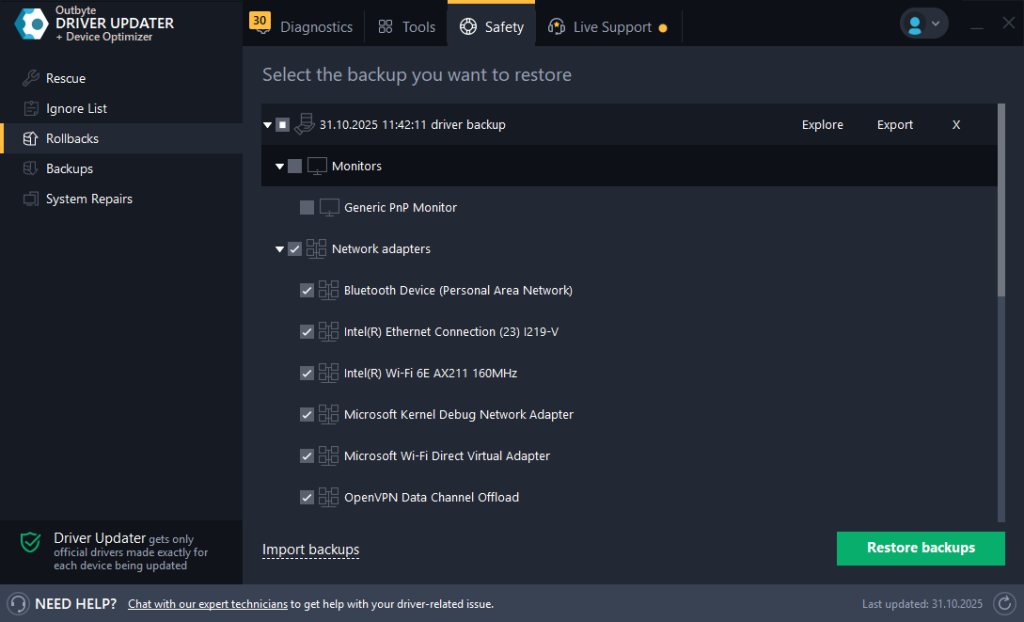
No technical preparation, no file-hunting — everything is stored safely for future recovery.
Restore Drivers Safely in Just a Click
If the latest update causes trouble, restoring the previous driver version takes moments.
Situations where restore saves you:
- Wi-Fi is suddenly gone after reboot
- GPU stops responding mid-game
- Input devices freeze or disconnect
- System becomes unstable after multiple updates
Use Outbyte Driver Updater to recover previous drivers instantly and bring apps and hardware back to life.
Rollback vs. Full Restore — Choosing the Right Fix
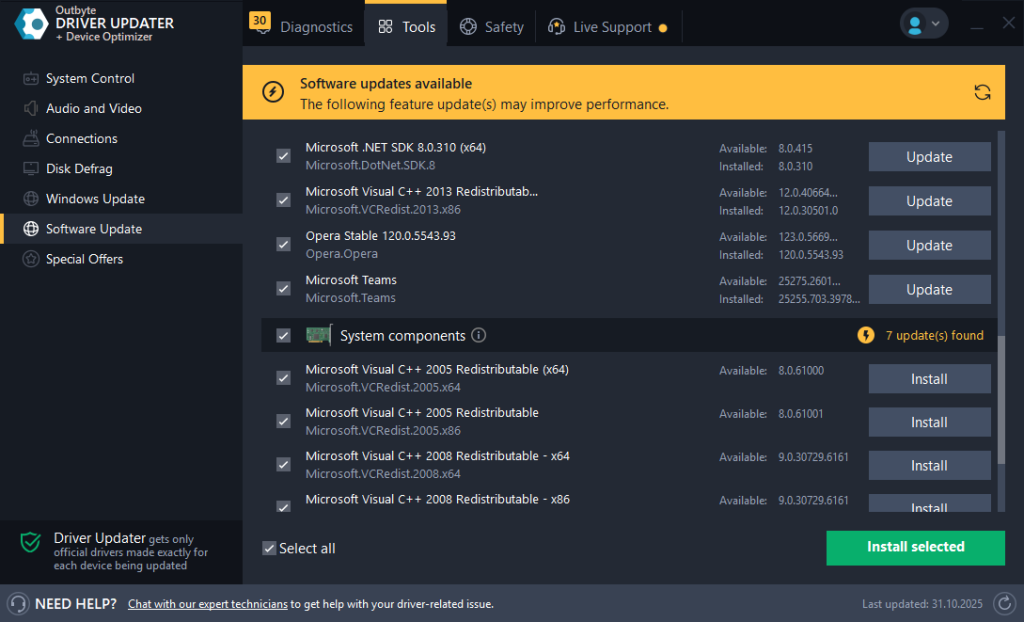
Outbyte provides two options depending on the issue:
| If this happens… | Best action |
|---|---|
| Only one device misbehaves after update | Rollback that driver |
| Many devices break after major update | Full driver restore |
| PC crashes immediately after GPU update | Rollback GPU driver |
| Networking disappears entirely | Restore network drivers |
Rollbacks are fast and targeted.
Restores bring everything back to how it was before issues started.
Helpful Tips for Long-Term Stability
To get the most out of backup & restore tools:
- Save backups when the system is running perfectly
- Keep one backup set on an external drive
- Restart after restoring so Windows loads drivers correctly
- Refresh your backups after large OS updates
- Test peripherals after applying restore
Maintaining driver backups keeps your PC resilient. The backup and restore tools inside Outbyte Driver Updater give users a reliable way to recover from failed driver installs and avoid long, stressful troubleshooting.
Find guides on drivers you can install safely.
Generic SuperSpeed USB Hub driver
Microsoft ACPI-Compliant System driver
Microsoft Kernel Debug Network Adapter driver
FAQ
Will restoring a driver remove apps or files?
No. It only affects hardware control software.
Should I use Rollback or Restore first?
Start with rollback if one device is causing issues.
Can restoring drivers help with Blue Screens?
Yes — many BSODs are driver-related.
How often should I back up drivers?
Whenever you update critical hardware drivers or before OS upgrades.
Do I need to be technical?
No — Outbyte does all the heavy lifting automatically.