Your PC depends on drivers for almost everything — connecting to Wi-Fi, showing graphics on the screen, playing audio, recognizing USB devices, and more. But when these small pieces of software fall behind, your system can quickly turn unstable.
A single outdated driver can cause random freezing, sluggish performance, and even Blue Screen errors. The good news? Updating drivers safely can restore a smooth, stable experience in minutes — without reinstalling Windows.
All features and screenshots in this article are shown using Outbyte Driver Updater, which helps maintain system stability and performance by monitoring, updating, and restoring Windows drivers.
This guide explains how outdated drivers break your PC and how to update them the right way.
Why Drivers Matter
Drivers make sure that every component of a PC speaks the same “language” as Windows. When a driver is missing or outdated, hardware doesn’t know how to operate correctly — even if it’s completely functional.
Examples:
- Your GPU needs the right driver to display video
- Your network adapter needs updated instructions to maintain stability
- Your audio driver ensures clean and consistent sound
- Touchpads, keyboards, and Bluetooth rely on responsive driver updates
That’s why keeping drivers current isn’t only about performance — it preserves system health and prevents unexpected failures.
How Outdated Drivers Cause Problems
Modern apps and games evolve quickly — and Windows updates frequently. If your drivers don’t keep pace, the OS and hardware fall out of sync.
This creates underlying instability that leads to:
- System crashes during demanding tasks
- Sudden reboots
- Screen flickering or black screens
- Missing Wi-Fi, sound, or USB input
- Higher temperatures and loud fan noise
A mismatched driver becomes a communication problem — and Windows responds with instability.
Common Symptoms of Driver Issues
Driver trouble often disguises itself as everyday annoyances:
- Microphone stops working right before a meeting
- Bluetooth audio lags or disconnects
- Games randomly crash or stutter
- Windows boots slower than usual
- Blue Screens appear with hardware-related messages
Example codes that often point to driver issues:
- DRIVER_IRQL_NOT_LESS_OR_EQUAL
- VIDEO_TDR_FAILURE
- WHEA_UNCORRECTABLE_ERROR
If these appear — the problem is likely driver-related.
How to Check for Outdated Drivers
Windows Device Manager detects only severe failures — not outdated drivers.
A full system scan gives more useful information.
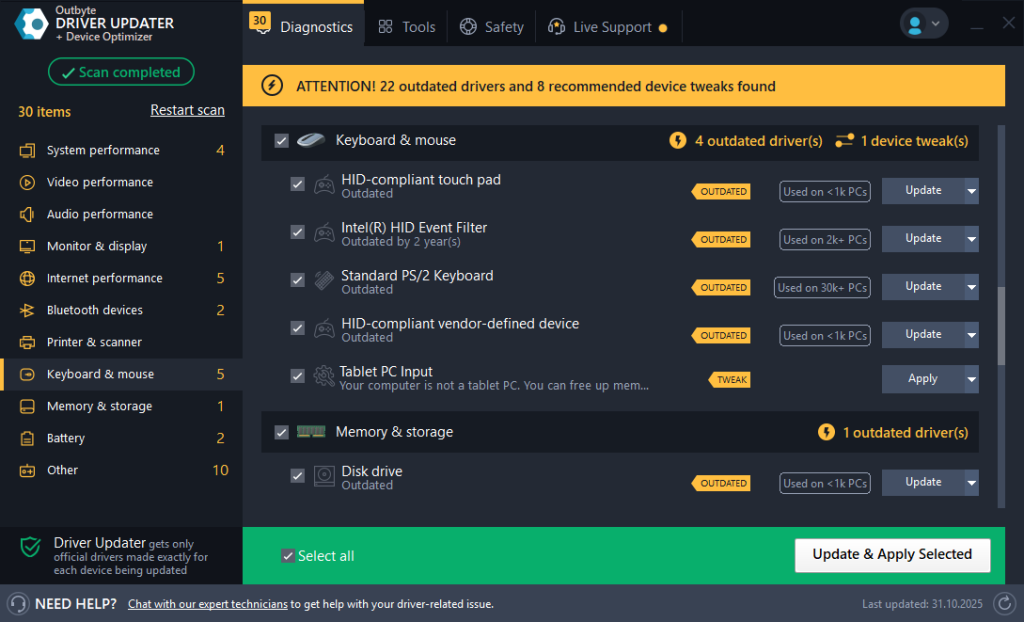
The scan helps users see:
- Which drivers are outdated
- Severity and potential impact
- Devices that may cause performance issues
Outbyte simplifies discovering where updates are needed.
How to Update Drivers Safely
Manually searching hardware vendor sites risks installing the wrong driver — causing more issues.
A safe update process includes:
- Creating a restore point
- Backing up current driver versions
- Using compatibility-verified driver releases
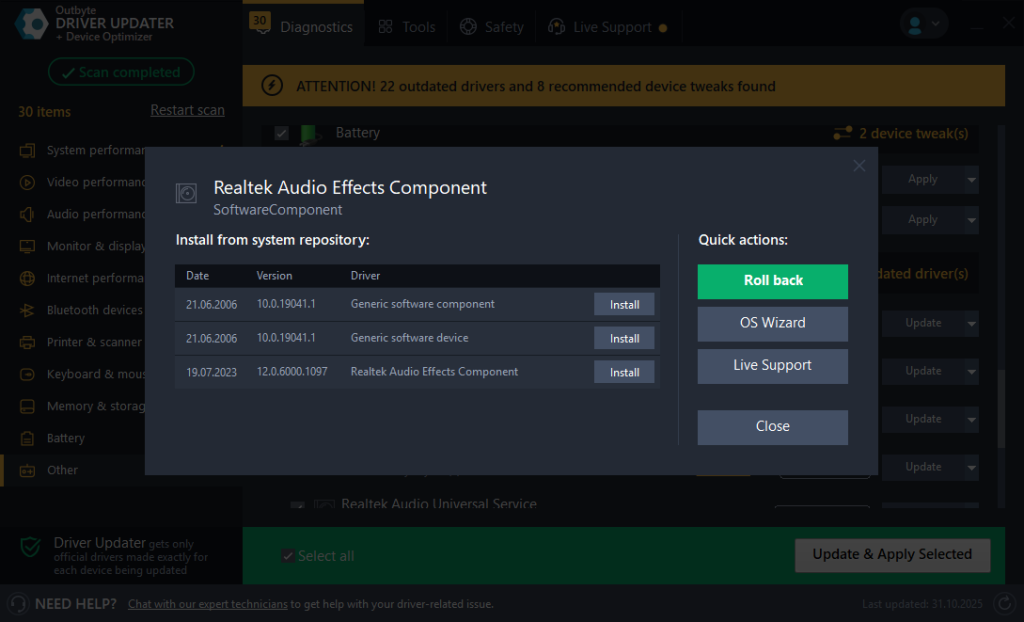
To automate this entire process with built-in backups and safe installs, Outbyte Driver Updater can scan and apply correct versions for your hardware.
How to Roll Back Drivers if Updates Go Wrong
Even stable drivers may conflict with certain PC configurations.
Rollback is your rescue button.
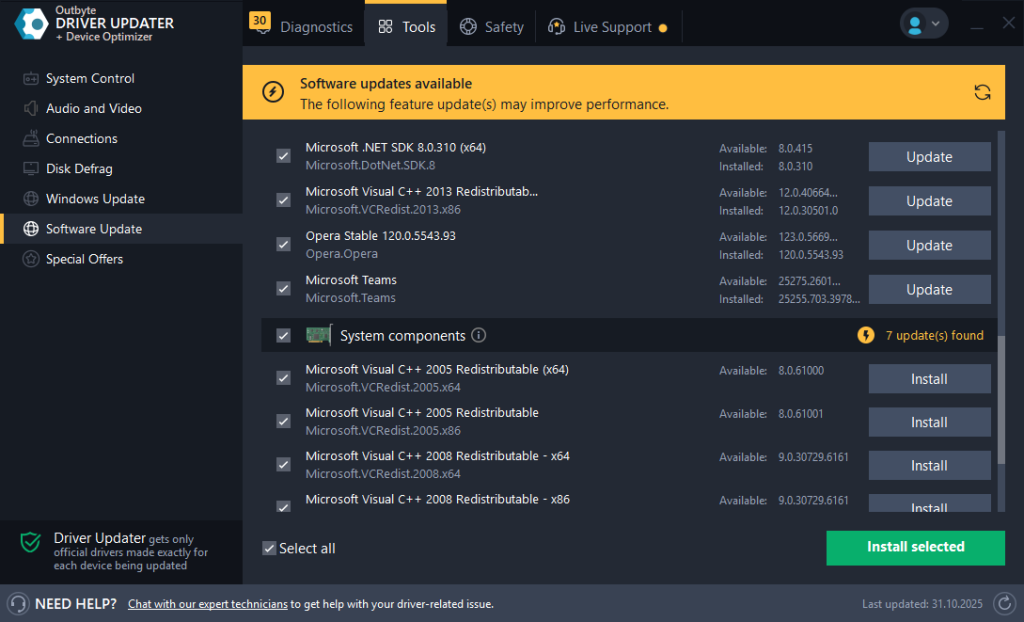
Rollback helps you:
- Revert to a previously working driver
- Recover instant access to display, audio, or network
- Escape system crashes without reinstallation
You stay in control, even when a new update misbehaves.
Pro Tips for Stable Performance
Smart driver maintenance practices help prevent issues before they start:
- Update drivers after major Windows updates — not before
- Prioritize GPU → chipset → network → audio updates
- Restart Windows after every update to finalize driver changes
- Roll back when a single device acts up
- Update multiple drivers if the system becomes unstable after an OS update
Keeping drivers up-to-date is one of the simplest ways to prevent crashes and maintain a fast, stable PC.
The features shown here are included in Outbyte Driver Updater to help users update safely, recover from failed installs, and enjoy smoother system performance.
Below you can find Outbyte’s catalog of popular drivers.
FAQ
Is Windows Update enough for drivers?
It installs universal drivers — not hardware-optimized versions.
How often should I update drivers?
When problems appear or after system upgrades and new app/game installs.
Can driver updates fix Blue Screens?
Yes — many BSODs stem from incorrect or outdated drivers.
Should laptop users update more often?
Yes, because power and thermal management depend heavily on driver quality.
Do newer drivers improve gaming performance?
GPU driver updates often enhance performance in newly released games.