-
Location:
 Columbus, Ohio (United States)
- ASN: 16509
- ISP: AMAZON-02

What Is a DNS Leak?
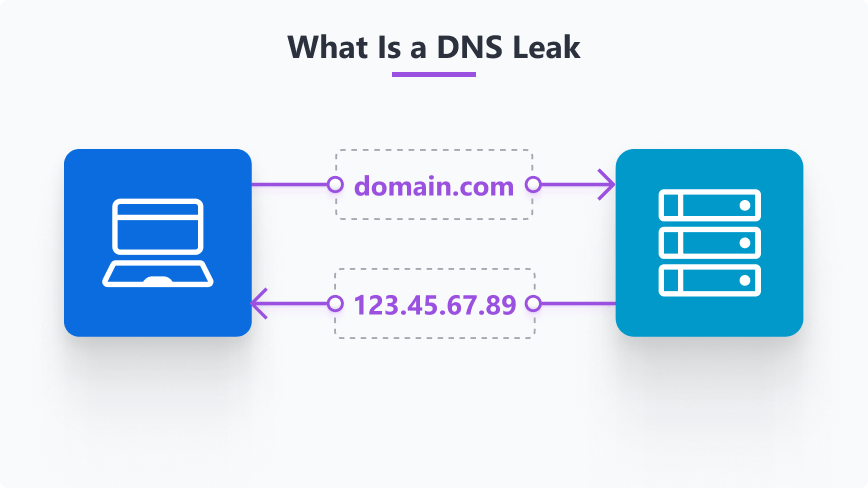
To understand a DNS leak, you first need to understand DNS (Domain Name System). Think of DNS as the phonebook of the internet. When you type a website name (like outbyte.com) into your browser, your device contacts a DNS server to translate that name into an IP address the computer understands.
Usually, your ISP (internet service provider) handles these requests. This means they can see every website you visit. When you use a VPN, your traffic—including these DNS requests—is encrypted and sent through a secure tunnel, hiding your activity from your ISP.
So, what is a DNS leak? A DNS leak happens when your device accidentally ignores the secure VPN tunnel and sends your DNS requests directly to your ISP’s servers instead.
How a DNS Leak Test Works
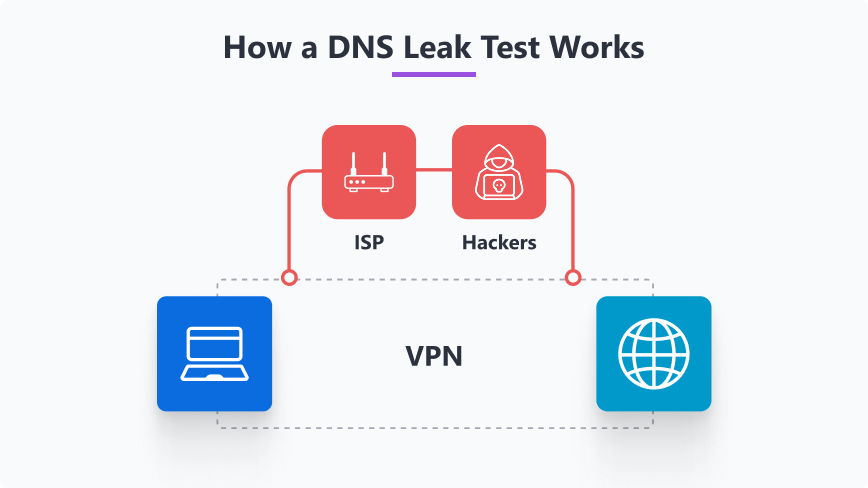
Our DNS leak checker prompts your browser to load specific, unique domain names, forcing it to send a fresh request to a DNS server to find the address. The tool then captures which DNS server made the request and compares its IP address against your public IP address.
If you are using a VPN, the DNS request should come from the VPN provider’s server. If the request comes from your ISP’s server, you have a leak.
This simple test for a DNS leak reveals whether your system (and VPN provider) is respecting your privacy or exposing your online activity behind your back.
What Your Results Mean
After you run a check for a DNS leak, you will see a list of IP addresses (DNS endpoints), who they belong to, and their locations. Here is how to interpret them:
-
If the results you get on our DNS leak test website show DNS servers that belong to your VPN provider, you are safe. This means your encrypted tunnel is working correctly, and your ISP cannot see your web requests. The location shown should match the server location you selected in your VPN app, not your physical home address.
-
If the results show servers owned by your local ISP, or if the location matches your real physical location while your VPN is on, you have a leak, and your privacy is compromised. This means:
- Your ISP knows what websites you are visiting.
- The websites you visit may be able to see your true ISP location.
- Your VPN is encrypting your data, but not your destination requests.
Why DNS Leaks Happen
You might wonder, “I bought a premium VPN, so why do I need a VPN DNS leak test?” Unfortunately, software and operating systems often prioritize speed over privacy, leading to accidental leaks.
-
Windows Smart Multi-Homed Name Resolution (SMHNR): In newer versions of Windows (10 and 11), the OS sends DNS requests to all available network adapters at once and accepts the fastest response. If your ISP’s gateway is faster than the VPN tunnel, Windows will use the ISP, causing a leak.
-
IPv6 mismatches: The internet is slowly moving from IPv4 to IPv6 addresses. If your VPN only supports IPv4 but your ISP enables IPv6, your computer might send IPv6 requests outside the encrypted tunnel. This is a very common cause of leaks.
-
Teredo tunneling: This is a transition technology that gives full IPv6 connectivity for IPv4-capable hosts. It can sometimes bypass VPN tunnels entirely.
-
Browser WebRTC: Browsers use WebRTC for video and voice chats. However, it can sometimes reveal your true local IP address even if you are behind a VPN.
How to Fix and Prevent DNS Leaks
If your DNS leak test shows that your ISP is still visible, don’t panic. Security is a process, not a toggle switch. Here is how to stop a DNS leak to secure your connection and keep it that way.
How to fix a DNS leak
If you just ran a test and it showed a leak, you need to plug the hole immediately. The problem usually lies in your VPN configuration or your computer’s network settings. Here is how to fix it right now:


ipconfig /flushdns to wipe the slate clean.
How to prevent a DNS leak
Once your connection is secure, you need to ensure it stays that way. Operating systems often update and reset settings, so stopping a DNS leak permanently requires a few proactive changes:
-
Disable IPv6: If your VPN doesn’t support IPv6, it’s best to disable it in your network adapter settings. This is often the most effective remedy against recurring DNS leaks.
-
Patch WebRTC leaks in your browser: Disabling WebRTC in your browser’s advanced settings or installing a browser extension specifically designed to block it ensures it doesn’t reveal your real DNS while you’re using a VPN.
-
Regular auditing: Network configurations change. A driver update or a new software installation can revert your security settings without warning. The only way to be certain of your privacy is to make the DNS leak test a part of your regular routine.
Following these simple rules and running regular checks using the best DNS leak test tools, like Outbyte’s, will ensure that your device relies solely on the encrypted VPN tunnel and your privacy stays protected.
Frequently Asked Questions (FAQ)
What is a DNS leak test?
It is a diagnostic tool that determines which server your computer is using to translate domain names. It checks if your computer is using the secure server provided by your VPN or the insecure one provided by your ISP.
How to check for a DNS leak manually?
You cannot easily check this without a tool because the leak happens in the background transmission of data. The most reliable method is using a specialized DNS leak test online, like the one on this page, which can see the incoming request from the server side.
Why is a DNS leak dangerous?
A DNS leak is dangerous because it silently undermines the privacy tools you rely on. If you are using a VPN to stay anonymous, a DNS leak effectively “doxxes” your activity to your ISP. This exposure can lead to:
- Surveillance: Your ISP (and by extension, government agencies) can log your browsing history.
- Throttling: If an ISP sees you are visiting high-bandwidth streaming sites, they may intentionally slow down your connection.
- Censorship: If you are using a VPN to bypass geoblocks or censorship, a DNS leak can reveal your activity and allow the block to remain effective.
What exactly can an ISP see if I have a DNS leak?
If your DNS is leaking, your ISP can see the “metadata” of your internet usage.
- What they SEE: They can see every domain name you request. For example, they know you visited outbyte.com, youtube.com, or a specific medical advice website. They can also see the time you visited and how frequently you return.
- What they usually DON’T see: They cannot see the specific content you are viewing on that site (like your passwords, credit card numbers, or the specific video you are watching) provided the website uses HTTPS (the lock icon in your browser). However, knowing where you go is often enough to build a detailed profile of your personal life.