How To Fix why my internet speed slow in Windows
How To Fix why my internet speed slow in Windows
If you've noticed your internet connection moving slower than usual on your Windows computer, you're experiencing a common issue that can affect productivity and daily tasks. This slowdown means that web pages take longer to load, downloads crawl at a frustrating pace, and streaming videos may buffer frequently or drop in quality. While your internet service provider might be the first place you look, the problem often lies within your Windows system settings or configuration.
This issue typically occurs during everyday activities like browsing websites, using cloud services, video conferencing, or downloading files. You might notice it happening consistently throughout the day, only during peak usage hours, or suddenly after a Windows update. The problem affects all modern Windows versions including Windows 10, Windows 11, and even older systems like Windows 8.1. While not technically an "issue" with a specific code, the symptoms are unmistakable - applications that rely on internet access become sluggish, online gaming experiences lag, and overall computer responsiveness can feel compromised when network-dependent tasks are running.
The good news is that most internet speed issues on Windows are resolvable through systematic troubleshooting. Common causes include background applications consuming bandwidth, outdated network drivers, incorrect network settings, or interference from Windows features like automatic updates. By following methodical steps to identify and address these factors, you can typically restore your internet connection to its expected performance level and return to smooth, uninterrupted computing.
Contents
[hide]PREPARATION STEPS (Professional Guidance)
Before troubleshooting slow internet speed, complete these preparatory measures to ensure system safety and accurate diagnostics:
1. Create a System Restore Point
- Open Start Menu → Type "Create a restore point" → Select "System Properties" → Click "Create" → Name it "Pre-Internet Resolve" → Confirm.
- *Purpose:* Allows safe rollback if system changes cause instability.
2. Back Up Critical Data
- Copy essential files to an external drive or cloud service using File Explorer or your preferred backup tool.
- *Purpose:* Prevents data loss during unexpected system issues.
3. Temporarily Disable Antivirus/Firewall
- Open antivirus software → Locate "Real-time Protection" or "Firewall" → Toggle off temporarily (usually for 15–30 minutes).
- *Purpose:* Rules out security software interference with network performance.
4. Document Current Speed Metrics
- Use a reliable speed test (e.g., Ookla Speedtest) to record baseline download/upload speeds and latency.
- *Purpose:* Provides quantifiable data to compare post-resolve results.
STEP-BY-STEP FIXES (Technical Precision)
Solution 1: Reset Network Stack via Command Line
1. Open Command Prompt as Administrator (Search "cmd" → Right-click → Run as administrator).
2. Reset Winsock catalog and TCP/IP stack by entering:
 ```cmd
 netsh winsock reset
 ```
3. Follow with:
 ```cmd
 netsh int ip reset
 ```
4. Restart your computer to apply changes.
5. Re-test internet speed and check for improvement.
Warning: This will reset network adapters; you may need to re-enter Wi-Fi passwords.
Solution 2: Adjust Bandwidth Reservation
1. Press `Win + R`, type `gpedit.msc`, and press Enter.
2. Navigate to:
`Computer Configuration` → `Administrative Templates` → `Network` → `QoS Packet Scheduler`.
3. Double-click "Limit reservable bandwidth" → Select "Enabled" → Set "Bandwidth limit" to `0`.
4. Click "Apply" → Restart the system.
5. Verify speed changes using a speed test tool.
Solution 3: Update/Reinstall Network Drivers
1. Press `Win + X` → Select "Device Manager".
2. Expand "Network adapters" → Right-click your network device → Select "Update driver".
3. Choose "Search automatically for updated driver software".
4. If no update is found, right-click the device again → "Uninstall device" → Restart PC to reinstall drivers automatically.
5. Check manufacturer’s website for latest drivers if issues persist.
ADVANCED SOLUTION OPTION (Professional Recommendation)
For users encountering persistent or complex network slowdowns—especially when manual steps fail to resolve underlying system corruption, driver conflicts, or registry issues—an automated repair tool offers a time-efficient alternative. Outbyte PC Repair provides a structured approach to diagnosing and resolving such issues, performing comprehensive scans to address system issues, optimize performance settings, and repair network-related configurations without requiring advanced technical knowledge. Its features include clearing junk files, resolving registry issues, and managing startup items, which collectively contribute to restoring optimal internet performance and overall system health. This option is particularly valuable when recurring problems suggest deeper system inefficiencies that benefit from automated, holistic maintenance.
Download Outbyte PC Repair for automated issue diagnosis and repair (compatible with Windows 8/10/11).Special offer. See more information about Outbyte; uninstall instructions; EULA; Privacy Policy.
MAIN CAUSES OF SLOW INTERNET SPEED
A slow internet connection is rarely due to a single factor and is often the result of several issues compounding. Identifying the root cause requires a systematic approach, starting from your local machine and moving outward to your service provider.
1. Network Congestion and Bandwidth Throttling: This is one of the most common causes. Your internet bandwidth is shared among all devices and applications on your network.
* Local Congestion: If multiple devices in your home (phones, tablets, smart TVs, other computers) are simultaneously streaming video, downloading large files, or gaming, they consume the available bandwidth, leaving less for your PC.
* ISP Throttling: Your Internet Service Provider (ISP) may intentionally slow down your connection during peak usage hours or if you exceed a certain data threshold, a practice known as throttling. This is often done to manage network traffic across all their customers.
2. Wi-Fi Signal Interference and Range Issues: Wireless connections are susceptible to physical and environmental factors that can drastically reduce speed and reliability.
* Physical Obstacles: Walls, floors, and large metal objects can weaken the Wi-Fi signal between your router and your PC.
* Signal Interference: Other electronic devices like cordless phones, microwave ovens, and Bluetooth speakers operate on the 2.4 GHz frequency band and can create interference. Neighboring Wi-Fi networks can also cause channel congestion.
* Distance from Router: The further your computer is from the router, the weaker the signal becomes, leading to slower speeds and potential disconnections.
3. Outdated or Faulty Network Drivers: The network driver is the software that allows your Windows operating system to communicate with your network adapter (Ethernet or Wi-Fi card).
* Outdated Drivers: An outdated, corrupt, or incompatible driver can cause poor performance, instability, and failure to achieve the maximum potential speed of your hardware.
* Driver Conflicts: Sometimes, after a Windows update, existing drivers can conflict with the new system files, leading to performance degradation.
4. Background Processes and Malware: Your computer itself may be using the internet without your knowledge.
* Background Applications: Windows Update, cloud storage sync (OneDrive, Dropbox), and other applications often run background processes that consume significant bandwidth.
* Malware or Adware: Malicious software can hijack your internet connection to perform tasks like sending spam, mining cryptocurrency, or broadcasting ads, which consumes your bandwidth and slows down your entire system.
5. Issues with DNS (Domain Name System): The DNS acts as the internet's phonebook, translating website names (e.g., google.com) into IP addresses that computers understand.
* Slow DNS Server: If your ISP's default DNS servers are slow or overloaded, there will be a noticeable delay before a website even begins to load, creating the perception of slow internet.
* DNS Cache Poisoning: A corrupted DNS cache on your local machine can lead to failed or slow lookups.
6. Hardware Limitations: The physical equipment involved has a maximum capability.
* Aging Router/Modem: Older routers may not support the latest Wi-Fi standards (like Wi-Fi 6) or have outdated hardware that cannot handle the speeds provided by your modern internet plan.
* Faulty Cables: A damaged or low-quality Ethernet cable can cause packet loss and reduced speeds, even if you have a high-speed plan.
CONCLUSION
A consistently reliable internet connection is fundamental to modern computing, whether for professional tasks, communication, or entertainment. Experiencing slow speeds is more than an inconvenience; it can indicate underlying issues with your local system setup, network environment, or service provision. Addressing this problem effectively requires a blend of immediate troubleshooting and a commitment to proactive system maintenance.
To ensure optimal performance and prevent recurring connectivity issues, it is crucial to adopt regular PC maintenance habits. Begin by periodically checking for and closing unnecessary background applications that may be leaching bandwidth. Regularly updating your network drivers through the Device Manager or your motherboard manufacturer's website is essential for compatibility and performance. For comprehensive system upkeep, consider using a dedicated PC maintenance tool like Outbyte PC Repair. Such utilities can help automate the process of cleaning junk files, resolving registry issues, and managing startup programs, which collectively contribute to a more stable and efficient system environment. Furthermore, performing regular malware scans with a reputable security program is non-negotiable for protecting your bandwidth and personal data from malicious actors.
On the network side, simple practices can yield significant improvements. Periodically restarting your router and modem can clear their memory caches and resolve temporary glitches. Evaluate your router's placement to minimize physical obstructions and signal interference. If your hardware is several years old, upgrading to a modern router that supports current Wi-Fi standards can be a worthwhile investment to fully utilize your internet plan's capabilities.
If you have methodically worked through these common causes—testing with a wired connection, checking for local congestion, updating drivers, and scanning for malware—and the problem persists, it is advisable to contact your ISP. They can run remote diagnostics on your line to check for signal degradation, node congestion, or account issues that are outside of your control. By taking a systematic and proactive approach to both your computer's health and your network setup, you can achieve the fast, stable, and reliable internet experience that is essential for daily computing needs.
| Trial limitation: | Category-based repair access for at least 2 days |
| Price (full version): | From $29.95 |

The following steps should resolve the why-my-internet-speed-slow issue:
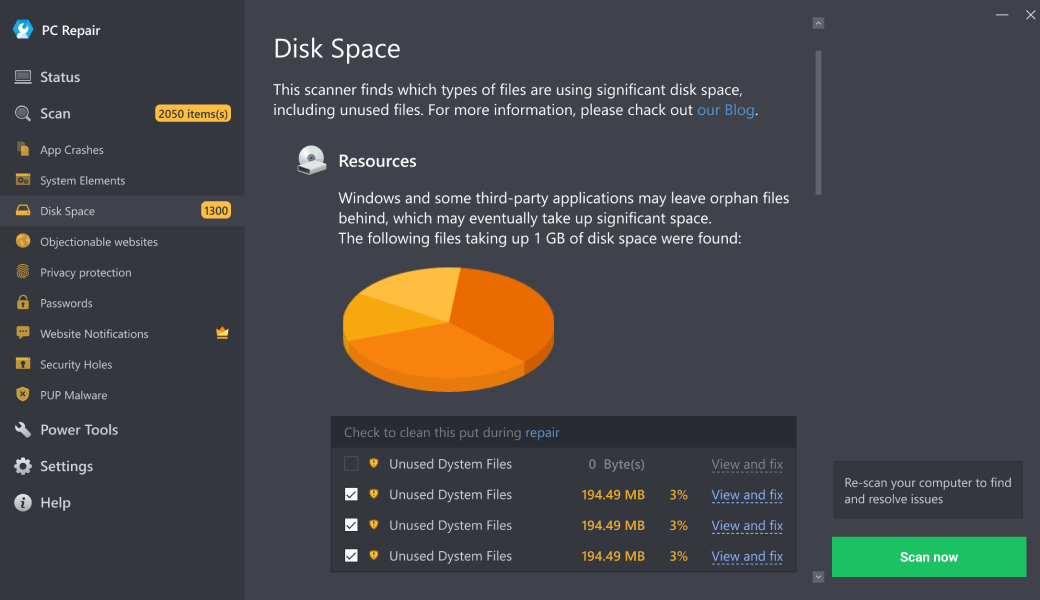
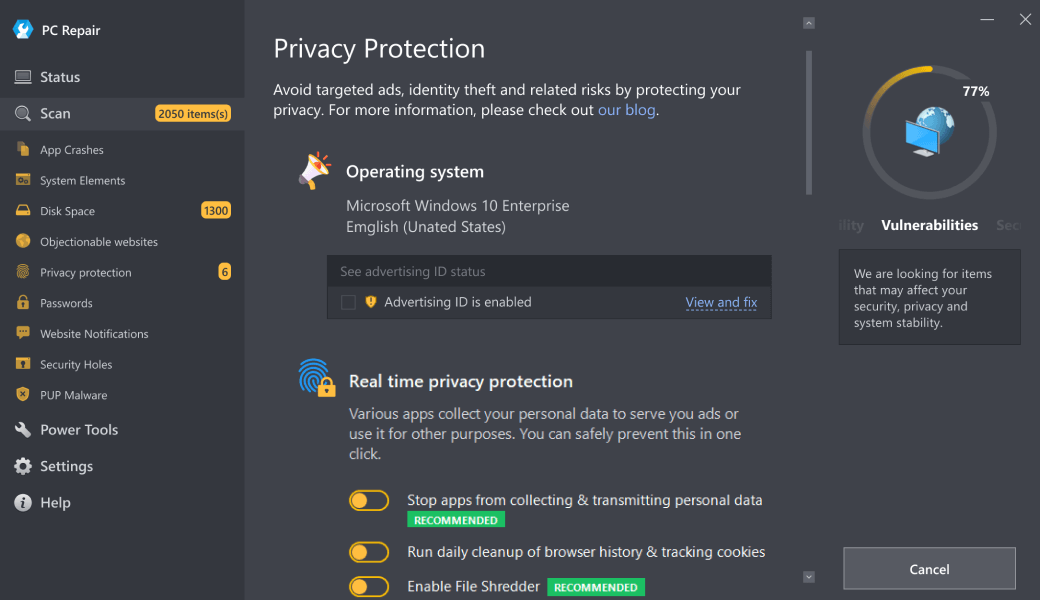
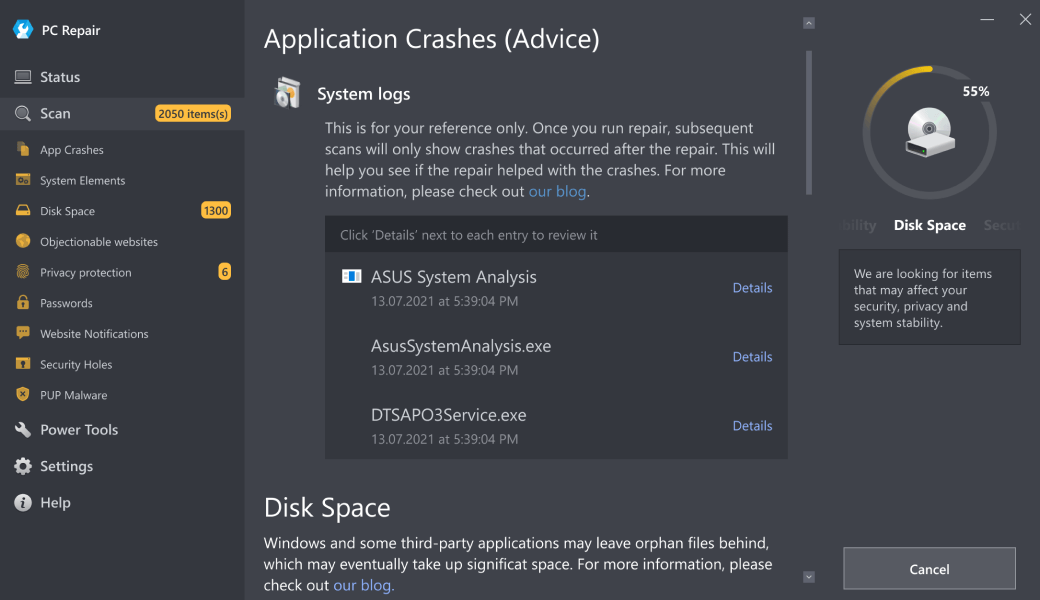
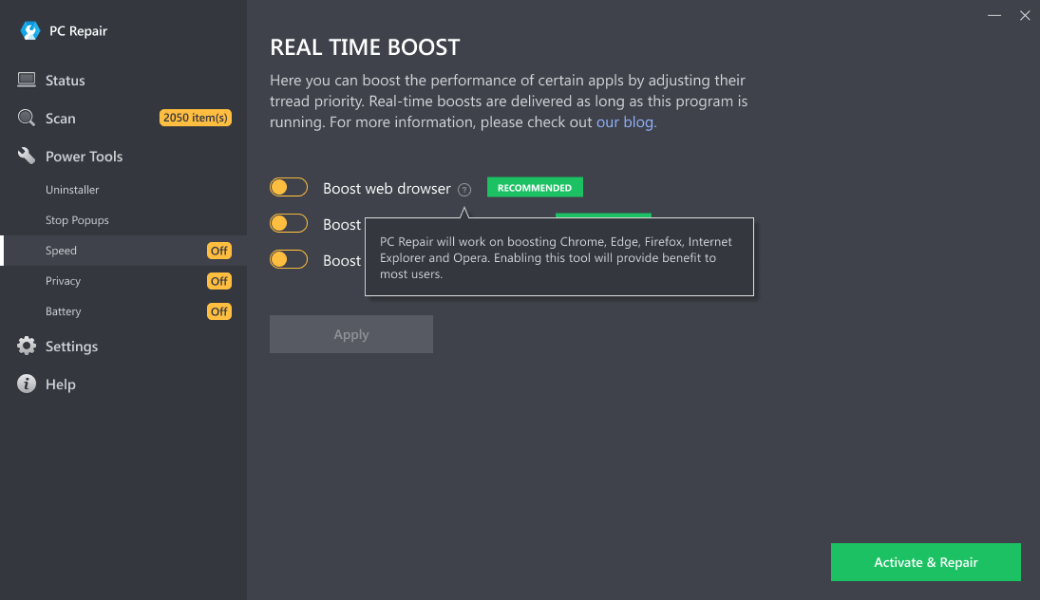
- Step 1. Download Outbyte PC Repair application See more information about Outbyte; uninstall instructions; EULA; Privacy Policy.
- Step 2. Install and launch the application
- Step 3. Click the Scan Now button to detect issues and abnormalities
- Step 4. Click the Repair All button to resolve the issues
| Compatibility | Win 11, 10, 8 |
| Download Size | 28 MB |
| Requirements | 300 MHz Processor, 256 MB RAM, 101 MB disk space |
Limitations: The trial version offers unlimited scans, backups, and restores. Full version registration starts at $29.95.

Outbyte PC Repair (version 1.1.12.641) is certified by AppEsteem – a trusted cybersecurity organization – with ongoing monitoring.
Being able to meet all of AppEsteem’s strict requirements means that Outbyte PC Repair can be considered clean, safe, and transparent; and that it is compliant with the ethical and legal norms of distribution.
AppEsteem is one of the world’s most prominent cybersecurity organizations that contributes to the safety of more than 2 billion users. The company was founded by a team of experienced Microsoft cybersecurity specialists. Its mission is to create a safe space for computer and internet users where they are protected against cyber threats and deceptive or unethical practices.