How To Fix HTTPS Problem in Chrome in Windows
How To Fix HTTPS Problem in Chrome in Windows
When you encounter an HTTPS problem in Google Chrome on your Windows computer, you're seeing a security warning that prevents you from safely accessing a website. HTTPS is the secure version of web browsing that protects your information, and when Chrome detects an issue with this security connection, it will block access to the site to keep your data safe.
This problem typically occurs in several common situations: when your computer's date and time settings are incorrect, when antivirus or firewall software interferes with secure connections, when websites have expired security certificates, or when Chrome's cache and cookies have become corrupted. You might see specific issue messages like "Your connection is not private," "NET::ERR_CERT_AUTHORITY_INVALID," or "SSL Certificate Issue." These issues can affect all modern versions of Windows, including Windows 10 and Windows 11, and can impact your ability to access banking sites, email services, and any website requiring secure login information.
While these warnings can be frustrating, they're actually Chrome working correctly to protect you from potential security risks. The good news is that most HTTPS connection problems can be resolved with straightforward troubleshooting steps that don't require advanced technical knowledge. In the following sections, we'll guide you through practical solutions to restore secure browsing and get you back to accessing the websites you need safely.
PREPARATION STEPS
Before addressing HTTPS issues in Chrome, complete these preparatory measures to ensure system safety and effective troubleshooting:
1. Create a System Restore Point
- Press Windows Key + S, type "Create a restore point," and select the result
- Click "Create" and follow prompts to establish a restore point
- *Purpose:* Allows system rollback if changes cause unintended consequences
2. Backup Important Data
- Copy critical files to external storage or cloud service
- Export Chrome bookmarks via Settings → Bookmarks → Bookmark Manager → Organize → Export bookmarks
- *Purpose:* Prevents data loss during troubleshooting procedures
3. Temporarily Disable Antivirus/Firewall
- Right-click antivirus icon in system tray and select "Disable" or "Turn off"
- Set duration for 15-30 minutes only
- *Purpose:* Eliminates potential interference with network connections
4. Document Current Network Settings
- Note current proxy settings (Settings → Network & Internet → Proxy)
- Record any custom DNS configurations
- *Purpose:* Provides reference for restoring original configurations if needed
STEP-BY-STEP FIXES
Method 1: Clear SSL State and Cache
1. Open Chrome and press Ctrl+Shift+Delete
2. Set time range to "All time"
3. Check boxes for "Cached images and files" and "Cookies and other site data"
4. Click "Clear data"
5. Type `chrome://settings/security` in address bar
6. Click "Manage certificates" → "Clear SSL state"
Method 2: Reset Network Settings
1. Open Windows Settings → Network & Internet → Status
2. Click "Network reset" at bottom of page
3. Select "Reset now" and confirm
4. Restart computer when prompted
5. Reopen Chrome and test HTTPS connections
Method 3: Disable Security Software Interference
1. Type `chrome://flags` in address bar and press Enter
2. Search for "Hardware acceleration" and set to "Disabled"
3. Restart Chrome when prompted
4. Access Windows Security → Firewall & network protection
5. Temporarily disable firewall for domain networks
6. Test HTTPS sites before re-enabling protection
ADVANCED SOLUTION OPTION
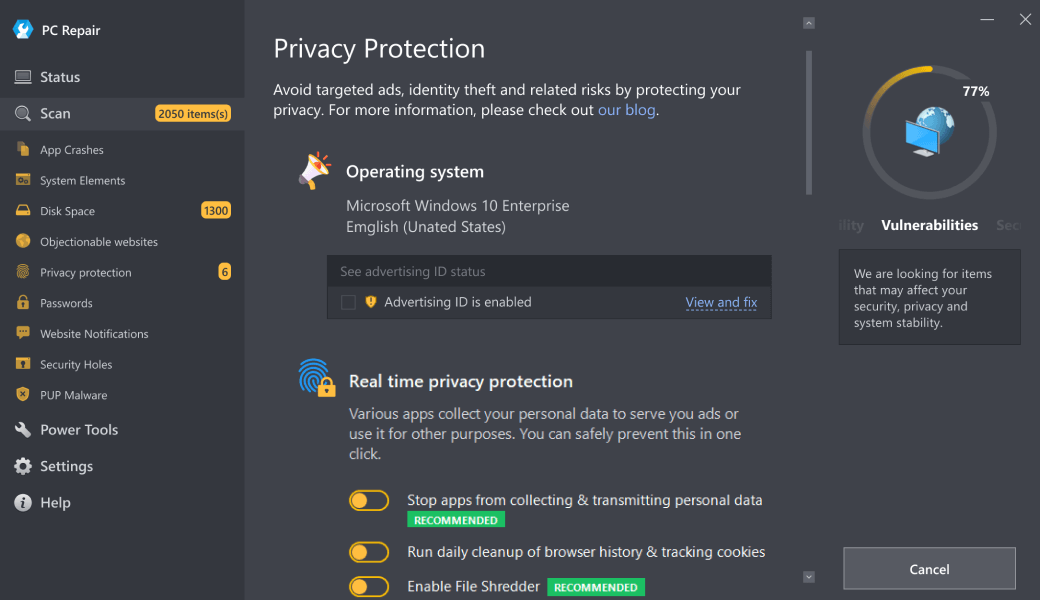
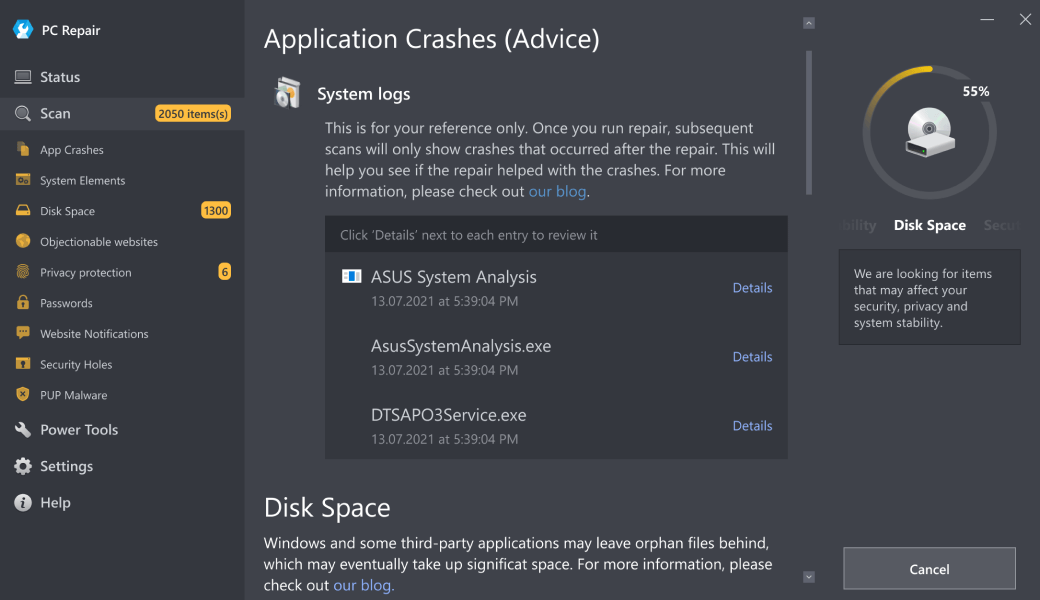
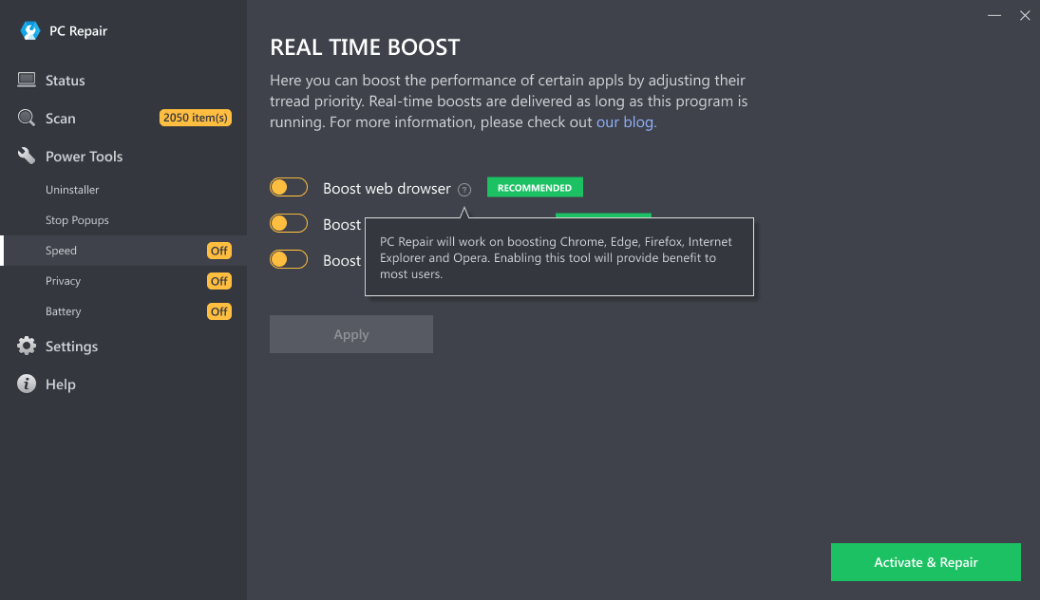
For persistent HTTPS issues stemming from complex system corruption or multiple underlying issues, automated repair tools provide efficient resolution where manual methods prove insufficient. Outbyte PC Repair offers professional-grade system optimization that addresses HTTPS connectivity problems through comprehensive registry cleaning, browser configuration correction, and network stack repair. The tool systematically identifies and resolves conflicting security settings, corrupted system files, and improper protocol handlers that manual troubleshooting might overlook. This approach is particularly valuable for business environments where time efficiency and complete system health maintenance are prioritized, providing holistic resolution beyond individual symptom treatment while maintaining system stability through automated backup creation before implementing repairs.
Download Outbyte PC Repair for automated issue diagnosis and repair (compatible with Windows 8/10/11).Special offer. See more information about Outbyte; uninstall instructions; EULA; Privacy Policy.
MAIN CAUSES
1. Incorrect System Date and Time Settings
Modern websites using HTTPS require accurate system time for certificate validation. If your computer's clock is significantly off (even by minutes), Chrome will reject secure connections as it cannot verify certificate validity periods. This security measure prevents potential man-in-the-middle attacks using expired or future-dated certificates.
2. Antivirus or Firewall Interference
Security software with HTTPS scanning features intercepts and re-encrypts web traffic, acting as an intermediary. When these applications use outdated root certificates or encounter configuration conflicts, Chrome cannot establish trusted connections to websites, resulting in HTTPS issues.
3. Corrupted Browser Cache and SSL State
Chrome maintains SSL certificate caches and security state information that can become corrupted over time. This stored data includes certificate revocation lists and session information that, when damaged, prevents proper SSL/TLS handshake completion during secure connection attempts.
4. Outdated Root Certificates
Operating systems maintain root certificate stores that validate the chain of trust for website certificates. If these root certificates are outdated or missing, Chrome cannot verify that a website's SSL certificate is issued by a trusted Certificate Authority, causing connection failures.
5. DNS Configuration Issues
Incorrect Domain Name System settings or cached DNS records pointing to wrong IP addresses can redirect HTTPS requests to servers without valid certificates. Chrome's security protocols then block these connections due to certificate name mismatches or untrusted sources.
6. Browser Extensions Conflict
Security-focused extensions or ad blockers that modify web requests can interfere with HTTPS connections. These extensions may attempt to rewrite secure URLs, block essential security elements, or inject content that breaks the SSL/TLS negotiation process.
7. Network Proxy or VPN Configuration
Corporate networks, proxies, or VPN services that intercept HTTPS traffic for monitoring purposes may present their own certificates that Chrome doesn't recognize as trusted. This breaks the chain of certificate authority validation required for secure browsing.
CONCLUSION
Maintaining reliable HTTPS connectivity in Chrome requires consistent system maintenance and proactive management of your computing environment. Regular maintenance not only resolves existing connection issues but also prevents future disruptions to your secure browsing experience. Begin by ensuring your operating system remains current with the latest security updates, as these often include critical root certificate updates essential for HTTPS validation. Configure your antivirus software appropriately, considering temporary disablement of HTTPS scanning features if you encounter persistent connection problems, then gradually reintroduce these security layers while monitoring for conflicts.
Implement a routine browser maintenance schedule that includes periodic clearing of cache and SSL state data through Chrome's advanced settings. This practice resolves many certificate-related issues without compromising your browsing data when performed correctly. Regularly audit your browser extensions, removing unnecessary add-ons and updating essential ones, as extension conflicts represent a common yet overlooked source of HTTPS failures. For systematic maintenance, consider using dedicated PC optimization tools like Outbyte PC Repair, which can automate certificate store maintenance, registry cleaning, and system optimization tasks that support stable HTTPS connections.
Monitor your network configuration consistency, particularly when switching between different networks or using VPN services. Ensure your system clock maintains automatic synchronization, as time discrepancies remain one of the most frequent causes of certificate validation failures. When troubleshooting persistent HTTPS issues, methodically test connections across different networks and user profiles to isolate the problem source. For complex network configurations or enterprise environments, consult with IT professionals who can analyze certificate chains and network traffic at a deeper level. Remember that reliable HTTPS connectivity is fundamental to both security and productivity in modern computing, making proactive maintenance an essential component of your digital routine rather than merely a reactive troubleshooting measure.

| Trial limitation: | Category-based repair access for at least 2 days |
| Price (full version): | From $29.95 |

The following steps should resolve the https-problem-in-chrome issue:
- Step 1. Download Outbyte PC Repair application See more information about Outbyte; uninstall instructions; EULA; Privacy Policy.
- Step 2. Install and launch the application
- Step 3. Click the Scan Now button to detect issues and abnormalities
- Step 4. Click the Repair All button to resolve the issues
| Compatibility | Win 11, 10, 8 |
| Download Size | 28 MB |
| Requirements | 300 MHz Processor, 256 MB RAM, 101 MB disk space |
Limitations: The trial version offers unlimited scans, backups, and restores. Full version registration starts at $29.95.

Outbyte PC Repair (version 1.1.12.641) is certified by AppEsteem – a trusted cybersecurity organization – with ongoing monitoring.
Being able to meet all of AppEsteem’s strict requirements means that Outbyte PC Repair can be considered clean, safe, and transparent; and that it is compliant with the ethical and legal norms of distribution.
AppEsteem is one of the world’s most prominent cybersecurity organizations that contributes to the safety of more than 2 billion users. The company was founded by a team of experienced Microsoft cybersecurity specialists. Its mission is to create a safe space for computer and internet users where they are protected against cyber threats and deceptive or unethical practices.