Title: How To Fix Browser Cannot Connect to Internet in Windows
Title: How To Fix Browser Cannot Connect to Internet in Windows
Introduction:
When your browser displays the "cannot connect to internet" issue, it means your web browser is unable to establish a connection to websites and online services, even though other applications might be working normally. This frustrating situation typically occurs when there's a communication breakdown between your browser and the internet, despite your computer showing an active network connection.
This issue commonly appears after Windows updates, network configuration changes, or when switching between different internet connections. You might encounter it while using popular browsers like Microsoft Edge, Google Chrome, or Mozilla Firefox on any Windows version, including Windows 10 and Windows 11. The issue can manifest as specific issue messages such as "DNS_PROBE_FINISHED_NO_INTERNET" or generic connection timeout warnings.
While this problem prevents you from browsing websites, checking email, or accessing online services through your browser, it doesn't necessarily mean your entire internet connection is down. Other applications may continue to function normally, which helps narrow down the troubleshooting focus to browser-specific or network configuration issues.
The good news is that this is typically a temporary and resolvable problem. Most connection issues can be resolved through straightforward troubleshooting steps that don't require advanced technical knowledge. In the following sections, we'll guide you through practical solutions to restore your browser's internet connectivity and get you back online quickly.
PREPARATION STEPS
Before attempting to resolve browser connectivity issues, please complete these preparatory measures to ensure system safety and data integrity.
1. Create a System Restore Point
- Press Windows Key + S, type "Create a restore point," and select the result.
- In the System Properties window, click Create, name it (e.g., "Pre-Internet Resolve"), and confirm.
- *Purpose:* Allows you to revert system changes safely if modifications cause unintended issues.
2. Back Up Critical Data
- Copy important files (documents, photos, etc.) to an external drive or cloud service.
- Use File History (search "Backup settings" in Windows) or manually drag files to your backup location.
- *Purpose:* Protects against data loss during troubleshooting.
3. Temporarily Disable Antivirus/Firewall
- Open your antivirus software (e.g., Windows Security via Start Menu > Settings > Update & Security > Windows Security).
- Temporarily disable real-time protection and firewall; re-enable immediately after testing.
- *Purpose:* Rules out security software blocking legitimate connections.
4. Document Current Network Settings
- Note down current IP/DNS settings (via Command Prompt: `ipconfig /all`).
- *Purpose:* Provides a reference to restore original configurations if needed.
STEP-BY-STEP FIXES
Solution 1: Reset TCP/IP and DNS Cache
1. Open Command Prompt as Administrator (search "cmd," right-click > Run as administrator).
2. Type each command below, pressing Enter after each:
```cmd
netsh winsock reset
netsh int ip reset
ipconfig /flushdns
ipconfig /release
ipconfig /renew
```
3. Restart your computer.
4. Test browser connectivity.
Warning: Resetting TCP/IP may require reconfiguration of static IP settings.
Solution 2: Check Proxy Settings
1. Press Windows Key + R, type `inetcpl.cpl`, and press Enter.
2. Go to the Connections tab and click LAN settings.
3. Ensure "Automatically detect settings" is checked and "Use a proxy server" is unchecked.
4. Click OK and restart the browser.
5. If issues persist, in Windows Settings > Network & Internet > Proxy, disable "Use a proxy server."
Solution 3: Reset Browser Network Settings
1. In your browser (e.g., Chrome), go to Settings > Advanced > System.
2. Click Open proxy settings to access Windows network settings.
3. Alternatively, reset the browser entirely:
- Chrome: Settings > Reset and clean up > Restore settings to their original defaults.
- Firefox: Help > Troubleshooting Information > Refresh Firefox.
4. Clear browser cache (Ctrl+Shift+Del, select "Cached images and files").
5. Restart the browser and test.
ADVANCED SOLUTION OPTION
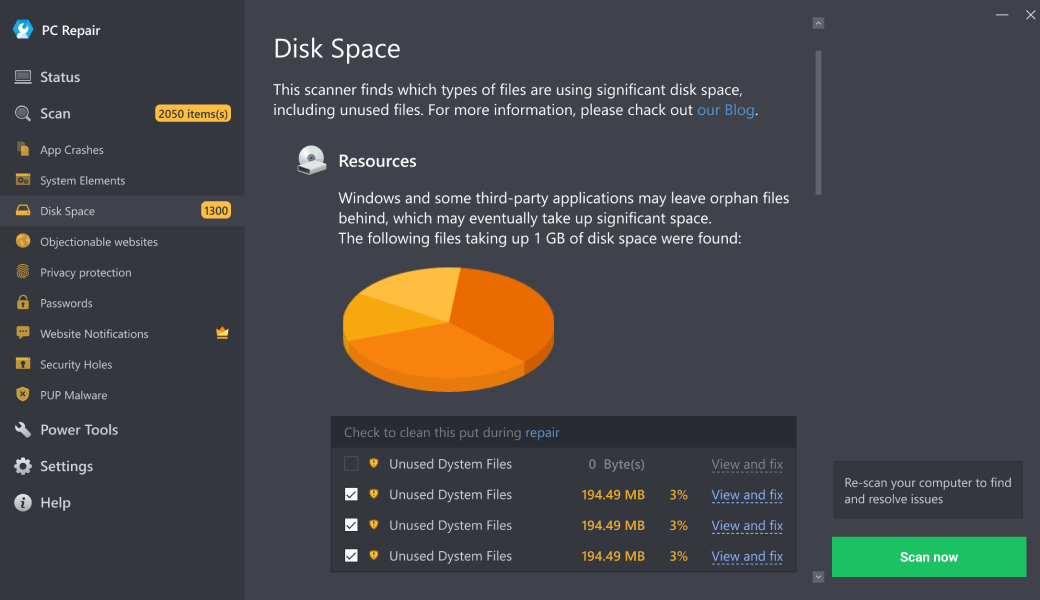
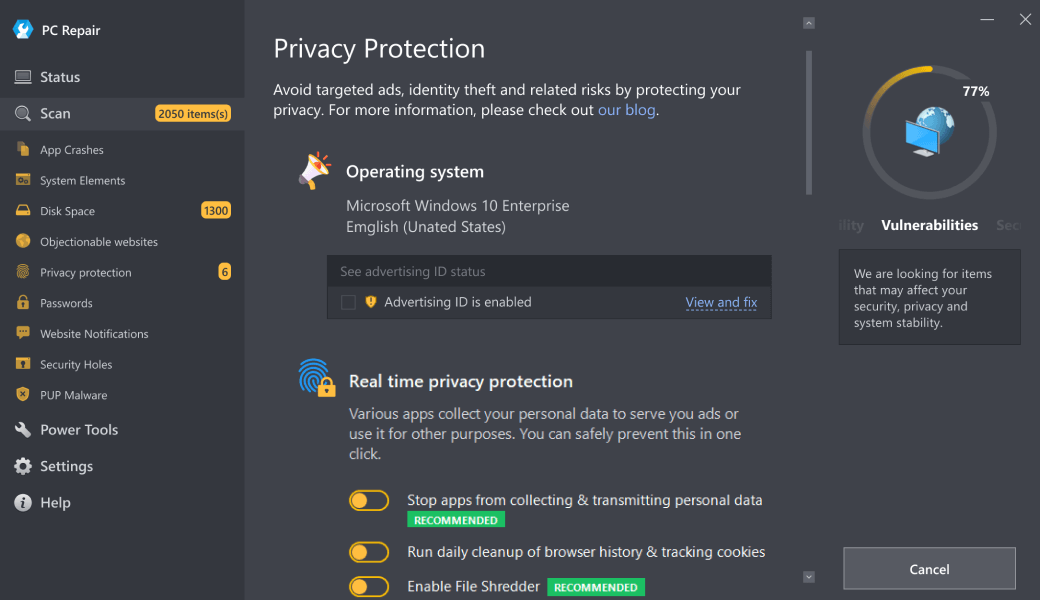
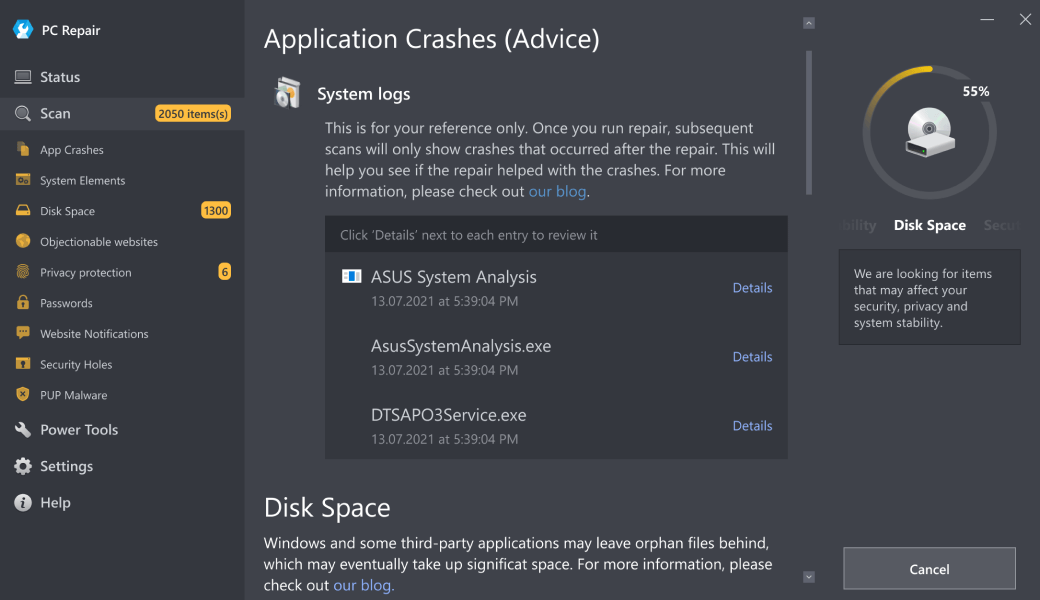
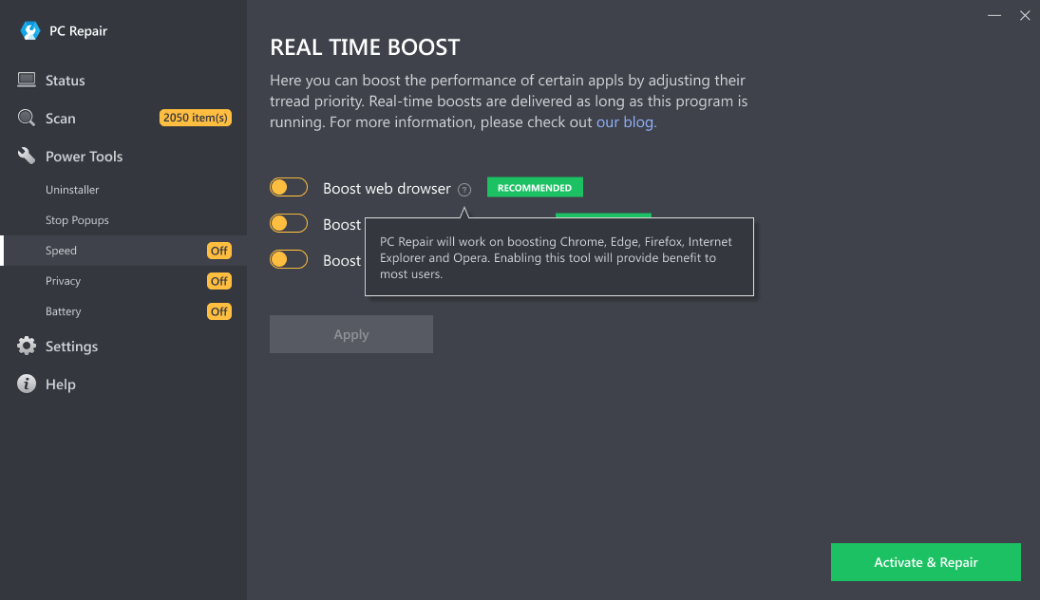
For users facing persistent or complex connectivity issues—such as recurring issues after manual resolves, multiple browser failures, or system-wide network instability—an automated repair tool can provide a time-efficient and comprehensive solution. Outbyte PC Repair is a professional-grade utility designed to address underlying system problems that manual methods may miss. It performs deep system scans to resolve registry issues, repair corrupted system files, optimize performance settings, and restore network components without requiring advanced technical knowledge from the user. This approach is particularly valuable when standard troubleshooting fails, ensuring thorough system health restoration while minimizing manual intervention risks.
Download Outbyte PC Repair for automated issue diagnosis and repair (compatible with Windows 8/10/11).Special offer. See more information about Outbyte; uninstall instructions; EULA; Privacy Policy.
MAIN CAUSES
1. Network Connectivity Issues
The most fundamental cause involves physical or wireless connection problems. This includes disconnected Ethernet cables, Wi-Fi router malfunctions, or incorrect network adapter settings. Your computer's network interface card (NIC) may be disabled in Device Manager, or the router might require rebooting due to temporary firmware glitches.
2. DNS Resolution Failure
Domain Name System (DNS) translates website names into IP addresses. When DNS servers are unreachable or misconfigured, browsers cannot locate websites despite having internet connectivity. This can occur due to incorrect DNS settings, ISP server outages, or local DNS cache corruption requiring flushing.
3. Browser Configuration Problems
Browser-specific issues including corrupted profiles, problematic extensions, or incorrect proxy settings can prevent internet access. Extensions may block connections, while proxy settings might redirect traffic through unavailable servers. Browser cache and cookie corruption can also cause connection failures.
4. Firewall or Security Software Blocking
Windows Defender Firewall or third-party security suites may incorrectly identify your browser as a threat and block its internet access. Overly aggressive security settings, outdated definitions, or conflicting security applications can create false positives that prevent legitimate browser connections.
5. TCP/IP Stack Corruption
The Windows TCP/IP protocol stack handles all internet communications. Corruption in this core networking component can disrupt browser connectivity while other applications might still function. This requires resetting the network stack using command-line utilities to restore proper protocol functionality.
6. Malware or System File Corruption
Malicious software may alter system settings to block browser access, while corrupted system files can disrupt network services. Windows system file checker (SFC) scans can detect and repair such corruption, but persistent malware infections require specialized removal tools.
7. ISP or Modem Issues
External factors including Internet Service Provider outages, modem configuration issues, or account authentication problems can prevent browser connectivity. These issues typically affect all devices on the network and require verification through alternative connection methods or ISP support contact.
CONCLUSION
Maintaining reliable internet connectivity requires consistent system maintenance and proactive troubleshooting. Regular computer upkeep not only prevents browser connectivity issues but also ensures optimal system performance for your daily computing needs. Begin with fundamental maintenance practices: periodically restart your networking equipment including modems and routers to clear temporary glitches, verify that Windows and all security software remain updated with the latest patches and definitions, and regularly clear browser caches and temporary files that can accumulate and cause conflicts.
For ongoing system health, consider implementing a comprehensive maintenance routine that includes monitoring startup programs to prevent unnecessary background applications from consuming resources, regularly scanning for malware using reputable security software, and periodically reviewing browser extensions to remove unused or problematic add-ons. Tools like Outbyte PC Repair can assist with automated maintenance tasks such as registry cleaning, junk file removal, and system optimization, though these should complement rather than replace manual oversight of your system's health.
When troubleshooting persistent connectivity problems, methodically work through potential causes from simplest to most complex—starting with router reboots, progressing through browser setting checks, and advancing to network stack resets if necessary. Document any issue messages and changes made during troubleshooting, as this information proves invaluable if professional technical assistance becomes necessary. Seek expert support when issues persist despite thorough troubleshooting, when dealing with suspected hardware failures, or when corporate network configurations require administrative privileges you don't possess. Remember that reliable internet access forms the foundation of modern computing, making systematic maintenance essential for both productivity and seamless online experiences.
| Trial limitation: | Category-based repair access for at least 2 days |
| Price (full version): | From $29.95 |

The following steps should resolve the browser-cannot-connect-to-internet issue:
- Step 1. Download Outbyte PC Repair application See more information about Outbyte; uninstall instructions; EULA; Privacy Policy.
- Step 2. Install and launch the application
- Step 3. Click the Scan Now button to detect issues and abnormalities
- Step 4. Click the Repair All button to resolve the issues
| Compatibility | Win 11, 10, 8 |
| Download Size | 28 MB |
| Requirements | 300 MHz Processor, 256 MB RAM, 101 MB disk space |
Limitations: The trial version offers unlimited scans, backups, and restores. Full version registration starts at $29.95.

Outbyte PC Repair (version 1.1.12.641) is certified by AppEsteem – a trusted cybersecurity organization – with ongoing monitoring.
Being able to meet all of AppEsteem’s strict requirements means that Outbyte PC Repair can be considered clean, safe, and transparent; and that it is compliant with the ethical and legal norms of distribution.
AppEsteem is one of the world’s most prominent cybersecurity organizations that contributes to the safety of more than 2 billion users. The company was founded by a team of experienced Microsoft cybersecurity specialists. Its mission is to create a safe space for computer and internet users where they are protected against cyber threats and deceptive or unethical practices.